Mastering Design Workflow: How to Group in Canva and Manage Assets Efficiently
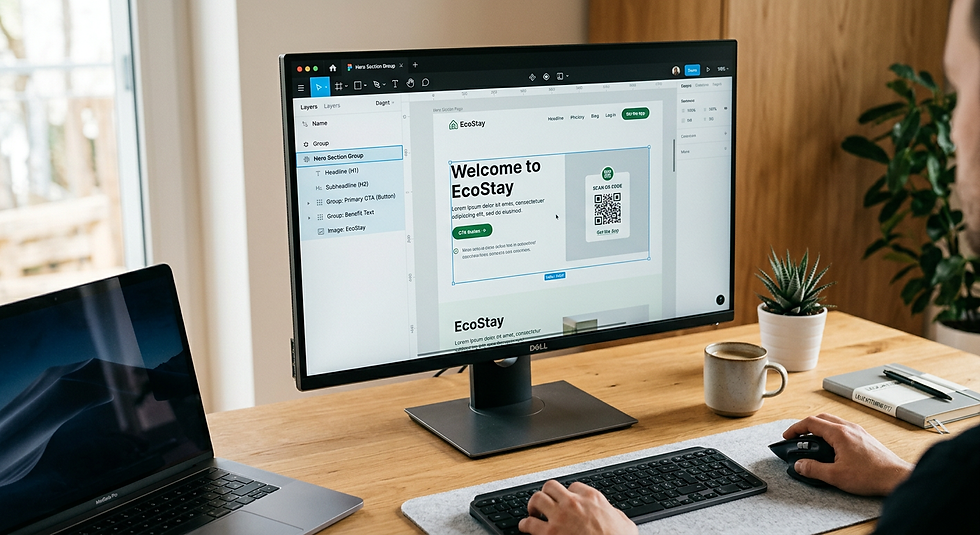
Professional visual communication requires precision in asset management. Whether you are building brand assets for social media or designing complex marketing collateral, mastering the fundamental tools within your design workspace determines the efficiency and polish of your output. Efficient workflows rely on grouping, layering, and precise transformation techniques to maintain visual consistency across all project iterations.

Quick Summary
Efficient design management requires understanding object manipulation, layer hierarchy, and responsive resizing. By mastering group functions, shadow applications, and image transformations, you ensure professional-grade output for digital and print media.
Use group commands to maintain spatial relationships between design elements.
Apply blur and shadow effects to add depth and visual hierarchy.
Utilise proper resizing techniques to prevent pixelation and layout distortion.
Incorporate QR code functionality to bridge physical and digital assets.
Table of Contents
[Quick Summary](#quick-summary)
[Organising Assets: How to Group in Canva](#organising-assets-how-to-group-in-canva)
[Precision Scaling: How to Change Size in Canva](#precision-scaling-how-to-change-size-in-canva)
[Refining Visual Impact: How to Flip Image in Canva](#refining-visual-impact-how-to-flip-image-in-canva)
[Enhancing Depth: How to Add Shadow in Canva](#enhancing-depth-how-to-add-shadow-in-canva)
[Stylistic Effects: How to Blur Image in Canva](#stylistic-effects-how-to-blur-image-in-canva)
[Technical Optimisation: Canva Resize Image Best Practices](#technical-optimisation-canva-resize-image-best-practices)
[FAQ](#faq)
[Recommended Reads](#recommended-reads)
Organising Assets: How to Group in Canva
Learning how to group in Canva is the cornerstone of complex layout management. Grouping allows you to lock multiple elements - such as text boxes, icons, and shapes - into a single movable unit. This prevents accidental misalignment when you drag items across your canvas, ensuring that your carefully structured header or button design stays intact.
To group elements, select them by clicking and dragging your cursor over the desired items, or hold 'Shift' while clicking individual components. Once highlighted, you can select the 'Group' option from the floating toolbar. This action creates a bounding box around the selection. When you need to edit an individual component within that group, simply double-click the item; to return to the group state, click outside the bounding box.
Precision Scaling: How to Change Size in Canva
Understanding how to change size in Canva goes beyond simple corner-dragging. While dragging a corner handle maintains the aspect ratio, precision requires managing the element's resolution and surrounding canvas boundaries. When you scale a group, the software automatically recalculates the relative positions of the internal elements, keeping your layout consistent as you expand or contract the design.
If you find your design needs to adhere to specific dimensions, use the transform menu to input exact height and width values in pixels or millimetres. Always consider the impact of scaling on embedded assets like a QR code; if an asset is resized too small, the QR code may lose scanability. Always test the scan function after significant resizing to ensure the contrast and pixel density remain sufficient for mobile cameras.
Refining Visual Impact: How to Flip Image in Canva
Learning how to flip image in Canva provides essential control over the directionality and flow of your compositions. Flipping an image horizontally or vertically can reorient the subject matter to better direct the viewer's eye toward your primary call-to-action or QR code placement.
Select your image and look for the 'Flip' tool in the top toolbar. Horizontal flipping is particularly useful for creating symmetry or ensuring that the subject of an image faces 'into' your design rather than away from it. This simple adjustment can significantly improve the balance of a crowded layout, allowing you to better accommodate text or secondary graphics without obscuring vital information.
Enhancing Depth: How to Add Shadow in Canva
Knowing how to add shadow in Canva is a vital skill for creating professional visual hierarchy. Shadows distinguish elements from the background, creating the illusion of elevation and focus. You can apply various shadow styles - such as 'Drop', 'Glow', or 'Lift' - to text, shapes, and images.
Access these settings through the 'Effects' menu. Once applied, adjust the transparency, blur, and angle parameters to achieve a natural look. For a clean, modern aesthetic, use a subtle, low-transparency shadow. Excessive shadow can clutter a design, so use this tool sparingly, perhaps highlighting only the primary buttons or actionable content to guide user interaction.
Stylistic Effects: How to Blur Image in Canva
When you need to draw focus to a specific element or create a background that doesn't compete with your foreground content, knowing how to blur image in Canva becomes essential. This effect allows you to soften images or portions of images, effectively reducing their visual weight.
Navigate to the 'Edit Photo' menu and select 'Adjustments' or 'Effects'. Increase the blur intensity gradually to maintain enough detail for the viewer to identify the subject without letting it distract from your text or embedded QR code. Using a blur effect is a common professional technique for creating high-contrast layouts where the foreground element is sharp and the background provides context without overwhelming the viewer.
Technical Optimisation: Canva Resize Image Best Practices
When you use a Canva resize image workflow, the primary concern is output quality. Resizing an image that was originally low-resolution can lead to noticeable pixelation. Before you export, ensure your source files are of high enough resolution for the final output format. If you are preparing a design for printing, aim for 300 DPI (dots per inch) to ensure sharp lines and clear QR codes.
> Pro Tip: Always lock your background elements and group your primary functional components separately. This allows you to scale your design effectively without accidentally distorting the background or shifting the functional elements like your link-in-bio QR code.
FAQ
Q: Can I group elements from different layers in Canva?
A: Yes, you can group elements regardless of their layer depth. When grouped, they will move together, but you can still access individual elements by double-clicking the group.
Q: Does resizing an image affect its resolution?
A: Yes, downscaling is generally safe, but upscaling a raster image beyond its original dimensions can cause loss of detail and pixelation. Always work with the highest quality source file available.
Q: How do I ensure my QR code remains scanable after resizing?
A: Never resize a QR code smaller than 2cm by 2cm for physical print. Ensure there is high contrast between the code and its background, and avoid applying heavy filters or blurs that distort the square patterns.
Q: Is it possible to flip text in Canva?
A: Text elements can be mirrored using the 'Flip' tool, allowing for creative typographic effects. However, ensure legibility remains your priority.
Recommended Reads
[How to Use Link in Bio - Step-by-Step Guides for All Platforms](https://kode.link/how-to-guide?lang=en_US)
[Google Wallet Pass Creator | Create QR Codes with KODE.link](https://kode.link/google-wallet?lang=en_US)



Comments