5 Top Digital Art Software Tools for Professional Creators in 2026

You finish the linework on a commissioned piece, try to scale a vector element, and the raster layer violently degrades into a jagged mess. That is the exact moment most illustrators realise their current digital art software has stopped serving them. Moving from hobbyist sketching to professional production requires tools that handle high-resolution canvases, complex colour management, and non-destructive editing without crashing your machine. A definitive guide to choosing digital art software for your creative workflow starts with understanding how these engines actually process your strokes, allocate memory, and export your final assets.
Quick Summary
Professional digital art software provides the rendering engines, brush customisation, and layer management required to produce commercial-grade illustrations. Choosing the right application depends entirely on whether your workflow demands heavy photo manipulation, dedicated comic production, or mobile-first sketching.
Vector layer support prevents linework degradation during scaling.
Hardware-specific applications maximise tablet performance but limit cross-device workflows.
Open-source alternatives now rival premium suites in brush engine complexity.
Cloud-syncing tools allow seamless transitions between desktop and mobile environments.
Table of Contents
Comparison Table
Product | Primary Use Case | Features | Pros | Cons | Target Audience |
|---|---|---|---|---|---|
Adobe Photoshop | General Image Editing | Smart Objects, CMYK support, advanced masking | Industry standard format, massive plugin ecosystem, robust colour management | High subscription cost, heavy RAM usage, steep learning curve | Commercial illustrators and designers |
Clip Studio Paint | Comic and Manga Production | Vector layers, 3D reference models, panel tools | Flawless line stabilisation, dedicated comic tools, animation support | Complex interface, subscription required for mobile, overwhelming toolsets | Comic artists and 2D animators |
Krita | Concept Art and Painting | Wrap-around mode, brush stabilisers, HDR painting | Completely free, highly customisable brush engine, excellent texture tools | Lacks robust text tools, occasional performance drops on large files, no official iPad app | Concept artists and texture painters |
Procreate | Mobile-First Illustration | Valkyrie engine, gesture controls, time-lapse recording | One-time purchase, highly optimised for iPad, intuitive interface | Destructive layer limits, no desktop version, limited CMYK accuracy | iPad illustrators and hobbyists |
MediBang Paint | Comic and Manga Production | Cloud saving, pre-made tones, snap guides | Free base version, cross-platform syncing, lightweight on system resources | Intrusive ads in free version, requires account for cloud features, basic brush engine | Manga artists and mobile sketchers |
Buying Guide: Defining Your Production Environment
Evaluating digital art programs requires looking past the marketing materials and examining how the software handles data. The core differentiator between these applications is not the number of brushes they include, but their underlying architecture and how they expect you to work. We classify these tools into three distinct categories based on their Primary Use Case.
General Image Editing environments are built to handle everything from raw photography to typography. They use heavy, complex rendering engines that require significant RAM. These are not dedicated drawing apps; they are comprehensive manipulation suites that happen to support painting. You choose this category when your deliverables require strict CMYK colour profiles for print or integration with other design assets.
Comic and Manga Production tools are engineered specifically for sequential art. They prioritise line stabilisation, vector-based inking, and panel management. These applications understand that a comic artist needs to draw the same character consistently across fifty pages, so they include asset management systems, 3D reference models, and screentone libraries.
Concept Art and Painting software focuses entirely on the brush engine. These tools are designed to mimic traditional media or create complex digital textures. They strip away the photo-editing bloat to dedicate system resources to blending modes, colour mixing, and large canvas performance.
Mobile-First Illustration applications are built from the ground up for specific hardware, usually tablets. They rely on gesture controls rather than keyboard shortcuts and are heavily optimised for the device's specific GPU.
Practical rule: Never judge a drawing application by its default brushes. Evaluate it by how it handles a 600 DPI canvas with fifty active layers. If the brush lags behind your stylus under those conditions, the software will bottleneck your professional workflow.
When setting up your professional portfolio, you will also need to consider how clients access your work. Many creators now integrate QR code functionality into their physical prints or digital business cards, linking directly to their online galleries or link-in-bio landing pages. Ensuring your software can export crisp, high-resolution assets for these marketing materials is just as critical as the drawing experience itself.
1. Adobe Photoshop
When a client demands precise colour profiles and complex, non-destructive editing, digital artists usually turn to Adobe Photoshop's multi-platform workspace. This environment caters directly to commercial illustrators, concept artists, and designers who require absolute technical control over their canvases.
The mechanism that makes Photoshop the industry standard is its reliance on Smart Objects and adjustment layers. Instead of permanently altering pixel data when you scale a sketch or apply a colour filter, Photoshop wraps the original data in a mathematical container. This allows you to apply complex transformations, masks, and effects while preserving the source pixels. The brush engine relies heavily on your system's RAM to cache these non-destructive changes in real-time, which is why working on large canvases requires a workstation-grade computer. For creators looking for 6 best free design apps for professionals and creators, Photoshop's premium model is the exact opposite of that tier.
The industry standard carries a heavy processing tax
Photoshop's breadth of features means it was never built exclusively as a drawing tool. Its interface is cluttered with 3D manipulation, video timeline, and web slicing tools that an illustrator will never touch. This legacy code makes the software incredibly resource-intensive.
The honest limit of this software is its absolute reliance on high-end hardware. If you are working on a mid-range laptop with 8GB of RAM, Photoshop will begin scratch-disk swapping on a moderately complex illustration, resulting in severe brush lag and system freezes. It rules out creators who need lightweight software for older machines.
Buy this if your client contracts mandate delivering layered PSD files with specific CMYK print profiles.
Pros
Unmatched non-destructive editing capabilities through Smart Objects.
Industry-standard file formatting guarantees compatibility with major studios.
Robust CMYK colour management ensures accurate print reproduction.
Cons
Requires expensive, ongoing subscription payments.
Demands significant system RAM and processing power.
Steep learning curve due to a highly complex, multi-purpose interface.
2. Clip Studio Paint
While general image editors focus on photo manipulation, Clip Studio Paint optimises its workspace specifically for sequential artists, manga creators, and 2D animators. It provides dedicated tools for swift line art, panel construction, and frame-by-frame animation.
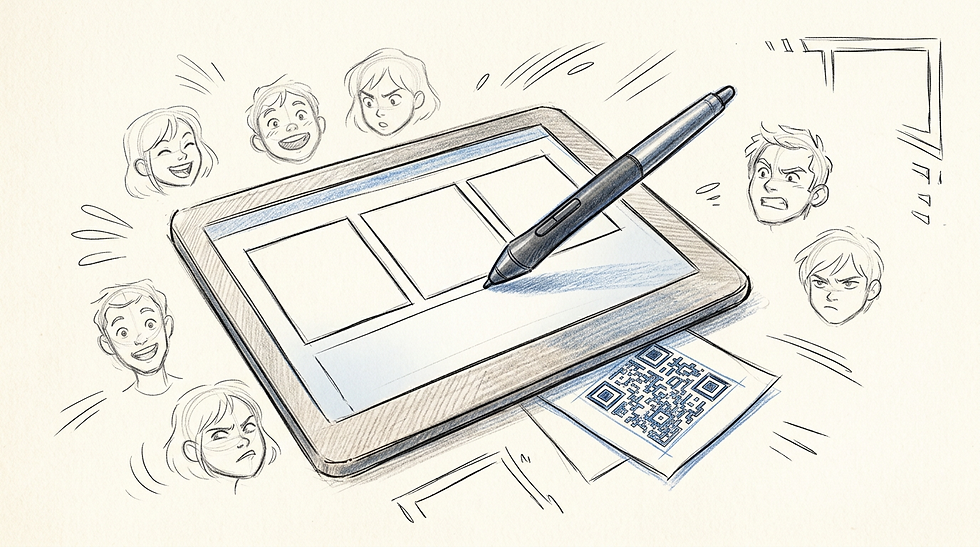
The core mechanism separating Clip Studio Paint from general image editors is its vector layer system. Unlike standard vector programs that use bezier curves to create shapes, Clip Studio applies vector mathematics strictly to the centre-line of your brush strokes. When you draw a line, the software records the path, pressure, and brush shape as mathematical data rather than pixels. This means you can use the vector eraser tool to perfectly delete intersecting lines up to their exact crossing point, or thicken a specific segment of linework after it has been drawn, without losing edge quality.
Vector linework fundamentally changes comic production
Clip Studio Paint operates within the Comic and Manga Production category, meaning its interface prioritises assets over pure painting. The material library allows users to drag and drop 3D poseable models directly onto the canvas, adjust their light sources, and trace over them on a new layer.
Mobile creators face a major hurdle due to the software's split licensing system. Desktop users enjoy a one-time perpetual purchase, but taking your work to an iPad or Android tablet requires a recurring monthly subscription. This structure frustrates artists seeking a unified, single-payment workflow across all of their creative devices.
I would deploy this software immediately if my primary income relied on producing weekly webcomic updates or detailed manga pages.
Pros
Vector layers allow for flawless, post-stroke line adjustments.
Built-in 3D reference models accelerate complex pose drafting.
Dedicated panel and ruler tools streamline comic page construction.
Cons
Mobile and tablet versions strictly require recurring subscriptions.
The asset library interface is clunky and often requires external browser downloads.
Text and typography tools are surprisingly rigid compared to design suites.
3. Krita
Why should high-grade digital painting tools require a monthly fee? Krita answers this by offering a completely free, open-source workstation for artists, illustrators, and concept designers. It delivers professional-grade painting engines without any subscription costs.
Krita operates on a unique brush engine architecture that separates rendering into distinct processing modules. Instead of a single brush algorithm, Krita offers specific engines for different tasks: a colour smudge engine for traditional oil blending, a sketching engine for pencil emulation, and a shape engine. This allows the software to calculate pigment mixing and bristle spread with mathematical precision. Furthermore, its wrap-around mode mechanism instantly tiles the canvas seamlessly in all directions, allowing texture artists to paint across the edge of the document and see the stroke continue on the opposite side in real-time.
Open-source development delivers unmatched brush customisation
Sitting firmly in the Concept Art and Painting category, Krita refuses to be a general photo editor. It focuses its development cycles entirely on the drawing experience. When exploring digital art top software and tools for creators, open-source options are frequently dismissed, but Krita's HDR painting capabilities and Python scripting support rival premium suites.
Working with text and vector shapes within this application reveals a significant bottleneck. Because its open-source contributors focus almost exclusively on raster brush engines, the typography tools remain basic and outdated. This makes laying out comic book pages with intricate speech bubbles highly impractical, rendering the software unsuitable for dedicated graphic designers or letterers.
Adopt this application if your workflow requires extensive custom brush creation and seamless texture generation on a desktop operating system.
Pros
Completely free and open-source with no hidden paywalls.
Wrap-around mode drastically simplifies seamless texture creation.
Highly modular brush engines provide deep customisation.
Cons
Typography and vector shape tools are severely underdeveloped.
No official, fully supported version for iPadOS.
Large canvases with complex smudge brushes can cause processing lag.
4. Procreate
To sketch freely on the move without a bulky desktop rig, artists often turn to the iPad-exclusive workspace of Procreate. It offers mobile illustrators, tattoo artists, and hobbyists a fluid, highly responsive engine optimised for touch and stylus input.
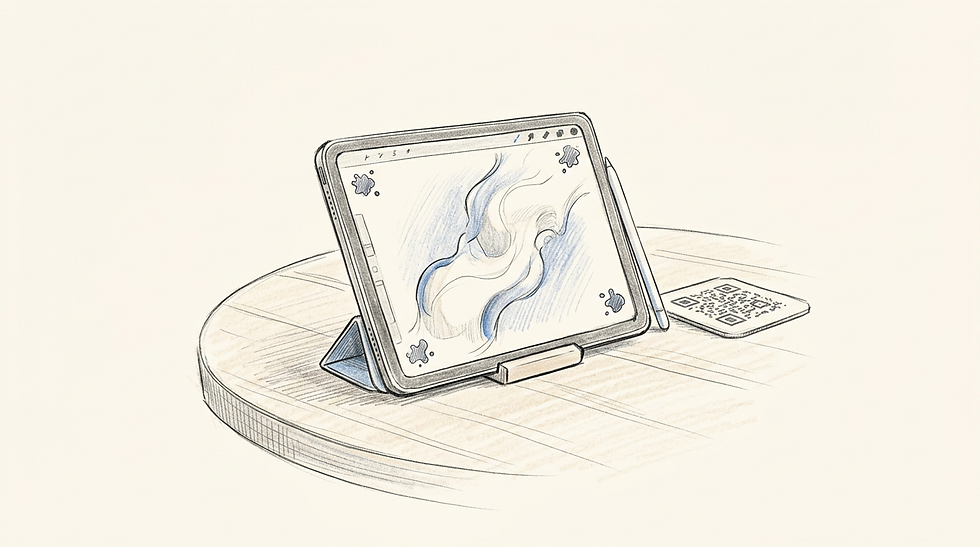
The application is powered by its proprietary Valkyrie graphics engine, which is coded specifically to interact with Apple's Metal API and the Apple Pencil's hardware sensors. By ignoring cross-platform compatibility, Procreate achieves a 120hz refresh rate on supported iPad Pro models. The mechanism relies on aggressively caching canvas data directly into the iPad's unified memory. This allows for instantaneous zooming, rotating, and blending, but it strictly binds the software's capabilities to the physical RAM limits of the specific iPad model you are using.
Hardware exclusivity forces a destructive workflow limit
As the defining application in the Mobile-First Illustration category, Procreate relies heavily on gesture controls. Tapping two fingers to undo, or three fingers to redo, replaces the traditional keyboard shortcuts of desktop applications.
Practical rule: If your workflow requires more than 50 layers for complex lighting and masking, check your device's RAM before committing to a mobile-first app. Hardware limits dictate layer maximums.
Layer limits restrict heavy workflows. The Valkyrie engine rejects slow storage for scratch space. Consequently, your maximum layer count depends entirely on canvas resolution and your iPad's RAM. Working on a 4K canvas using older hardware might limit you to under twelve layers. This restriction prevents complex, non-destructive illustration pipelines.
Invest in this application if you require a highly portable, highly responsive sketching environment and are comfortable merging layers to save memory.
Pros
Valkyrie engine delivers zero-lag brush strokes and canvas rotation.
One-time purchase model avoids subscription fatigue.
Intuitive gesture controls eliminate the need for a keyboard.
Cons
Strict layer limits based on device hardware and canvas size.
Exclusively available on iPad, preventing cross-platform desktop use.
Lacks robust adjustment layers, forcing destructive colour edits.
5. MediBang Paint
Creators who frequently switch between their desktop computers, tablets, and smartphones often rely on MediBang Paint's cloud-connected workspace. It offers free digital painting and manga creation tools, complete with brushes, comic panels, and fonts, making it highly accessible to hobbyists and mobile artists.
The defining mechanism of MediBang Paint is its integrated cloud infrastructure. Rather than relying on your device's local file system, MediBang pushes project files, custom brushes, and colour palettes to its own servers. This allows a user to start laying out a comic page on their PC, sync the file, and continue inking the exact same document on their smartphone during a commute. The software keeps its local footprint incredibly lightweight by offloading screentones, backgrounds, and fonts to the cloud, downloading them only when dragged onto the canvas.
Cloud infrastructure dictates the manga production pipeline
Operating within the Comic and Manga Production category, MediBang provides tools like snap guides for drawing speed lines and automatic panel division. It focuses heavily on the structural elements of Japanese comic creation.
The honest limit of MediBang Paint is its aggressive monetization of the free tier. To keep the cloud servers running, the free version serves intrusive popup advertisements on launch and frequently gates essential cloud features behind a premium subscription. This rules out professionals who cannot tolerate workflow interruptions or UI clutter from advertising networks.
Install this software if you primarily draw comics and absolutely require the ability to sync project files effortlessly between your desktop and your smartphone.
Pros
Seamless cloud syncing across Windows, Mac, iOS, and Android.
Extensive library of free, downloadable manga screentones and fonts.
Lightweight system requirements run well on older hardware.
Cons
The free version features highly intrusive popup advertisements.
Requires a registered account and internet connection to access core materials.
The brush engine lacks the depth and blending accuracy of dedicated painting apps.
Matching Your Workflow to the Right Engine
Choosing digital art programs requires matching the software's architecture to your specific daily tasks.
If your daily output requires General Image Editing, where illustrations must sit perfectly alongside typography, photography, and strict print profiles, Adobe Photoshop remains the necessary choice. Its Smart Objects protect your work from destructive scaling.
When your focus shifts entirely to Comic and Manga Production, the tools must change. Clip Studio Paint offers the vector line control necessary for commercial comic deadlines, while MediBang Paint provides a cloud-reliant alternative for creators jumping between devices.
If your bottleneck is creating complex textures and you fall into the Concept Art and Painting category, Krita's modular brush engine and wrap-around mode will accelerate your workflow far more than a standard photo editor.
Finally, for Mobile-First Illustration, Procreate offers an unmatched, lag-free drawing experience, provided you can accept the rigid layer limits imposed by iPad hardware.
FAQ
What makes digital art software suitable for professional use?
Professional software includes non-destructive editing features, high-resolution canvas support, robust brush customisation, and accurate colour profile management (like CMYK for print). Hobbyist apps often lack the memory management required to prevent crashing on large files.
Do I need a subscription to use professional digital drawing apps?
No. While Adobe Photoshop and Clip Studio Paint (on mobile) require subscriptions, highly capable alternatives like Krita are completely free, and Procreate offers a one-time purchase model for iPad users.
How do vector layers differ from raster layers in drawing software?
Raster layers store data as individual pixels, which blur and degrade when scaled up. Vector layers store brush strokes as mathematical paths, allowing you to scale, reshape, or thicken the linework indefinitely without any loss of quality.
Can free drawing apps handle high-resolution commercial printing?
Yes, applications like Krita can handle massive canvas sizes and export in professional formats. However, free apps sometimes lack the rigorous CMYK colour space validation found in premium suites, which is critical for accurate physical printing.


Comments