How to Format Professional Documents Using a Canva Resume Template in 2026
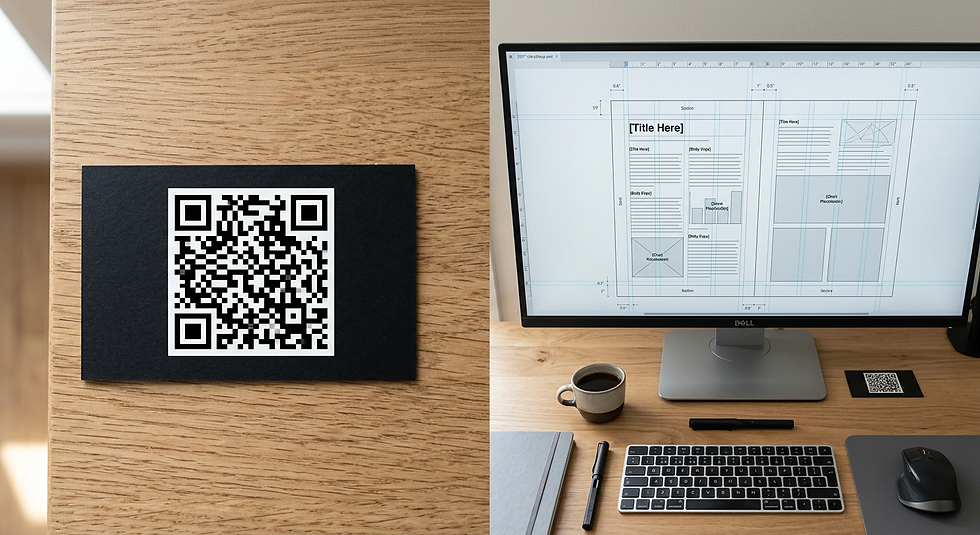
A common misconception job seekers and small business owners share is assuming that a design document is finished the moment it looks visually balanced on a monitor. In reality, a visually striking layout often masks a structural disaster beneath the surface. When formatting a canva resume template or preparing corporate stationery, the visual overlay is secondary to the file's underlying architecture. Applicant Tracking Systems (ATS) and commercial prepress machines do not interpret aesthetics; they extract raw text blocks, measure vector boundaries, and read specific data payloads. A document built purely for visual appeal will fail instantly when subjected to automated parsing or physical guillotine cutting. Formatting professional assets requires engineering the document for the machine that will ultimately process it.
Quick Summary
Formatting professional documents requires building files that survive automated extraction and commercial printing processes, rather than just prioritising visual aesthetics on a screen. A properly structured layout ensures data integrity across digital and physical mediums.
Applicant Tracking Systems read structural reading order, not visual layout.
Print documents require specific bleed margins and CMYK colour constraints to avoid edge cutting.
QR code functionality bridges static paper to digital environments, requiring specific sizing and contrast.
Export formats dictate whether a file functions as a high-resolution print asset or an accessible digital document.
Table of Contents
[1. Auditing the Canva Resume Template for Structural Integrity](#1-auditing-the-canva-resume-template-for-structural-integrity)
[Visual Hierarchy Will Not Save a Broken Grid](#visual-hierarchy-will-not-save-a-broken-grid)
[2. Managing Typography and Information Hierarchy](#2-managing-typography-and-information-hierarchy)
[Contrast Dictates Where the Eye Lands First](#contrast-dictates-where-the-eye-lands-first)
[3. Integrating QR Code Functionality for Digital Bridging](#3-integrating-qr-code-functionality-for-digital-bridging)
[Static Paper Must Resolve to Dynamic Landing Pages](#static-paper-must-resolve-to-dynamic-landing-pages)
[4. Adapting the Layout for Business Cards and Stationery](#4-adapting-the-layout-for-business-cards-and-stationery)
[Margin and Bleed Tolerances Dictate Print Success](#margin-and-bleed-tolerances-dictate-print-success)
[5. Exporting and Validating the Final Output](#5-exporting-and-validating-the-final-output)
[The File Format Determines the Document's Destination](#the-file-format-determines-the-documents-destination)
[Common Pitfalls & Troubleshooting](#common-pitfalls-troubleshooting)
[FAQ](#faq)
[Recommended Reads](#recommended-reads)
1. Auditing the Canva Resume Template for Structural Integrity
Visual Hierarchy Will Not Save a Broken Grid
Parsing software breaks documents into structural coordinate data. Applicant Tracking Systems read text blocks from top-left to bottom-right based on how the file was structurally built. Screen appearance does not matter. When users select a pre-made design, they frequently drag and drop text boxes out of their original sequence to adjust the layout. While the new configuration looks perfectly logical to a human reviewer, the underlying XML data still retains the original creation order. When the parsing software attempts to extract your work history, it pulls the data in that fragmented sequence, pairing your current job title with responsibilities from five years ago.
Furthermore, heavy reliance on vector graphics, icons, and non-standard grid structures disrupts the linear extraction process. A layout split into multiple columns often confuses older ATS software, which reads straight across the page rather than down a specific column. If an experience block is placed on the left and a skills block on the right, the parser may combine the two lines horizontally into a single, nonsensical sentence. Understanding [How to Format and Design Resumes Using Canva](https://dev-sitex192742306.wix-dev-sites.org/post/how-to-format-and-design-resumes-using-canva) involves knowing when to strip away decorative elements in favour of a rigid, single-column reading order.
> Practical rule: Always test your document's reading order by exporting it as a standard PDF, highlighting all the text, and pasting it into a plain text editor like Notepad; if the sequence is scrambled in the text editor, it will be scrambled in the recruiter's database.
The mistake people actually make here is relying on visual alignment tools rather than structural grouping. They will align an icon with a job title but fail to group the text logically. When formatting, you must ensure that each distinct section - such as a specific role, its dates, and its bullet points - is contained within a single continuous text block rather than shattered across multiple floating boxes.
2. Managing Typography and Information Hierarchy
Contrast Dictates Where the Eye Lands First
Professional documents fail when they force the reader to work to decipher the information. Typography is not merely a stylistic choice; it is a functional mechanism that dictates cognitive load. When users experiment with a resume maker canva provides, they often combine too many font families or reduce point sizes to fit more text onto a single page. A typeface that looks crisp on a backlit 4K monitor will often render as an illegible blur when printed on standard 80gsm office paper by a monochrome laser printer.
The mechanics of typography rely on establishing strict contrast between structural elements. Your headings, subheadings, and body text must be distinctly identifiable at a glance. Eye-tracking studies consistently show that professional reviewers scan documents in an F-pattern, searching for anchors like job titles and company names before reading the supporting bullet points. If your heading size is 12pt and your body text is 11pt, the contrast ratio is too low for the eye to distinguish between structural layers rapidly.
The specific failure mode in this step occurs when practitioners choose elaborate serif fonts for digital documents or lightweight sans-serif fonts for print. Elaborate serifs often suffer from poor anti-aliasing on lower-resolution screens, while ultra-light fonts disappear when commercial printers lay down ink on physical paper. When you utilise a canva cv template, you must manually audit the line height (leading) and letter spacing (kerning) to ensure the text breathes. A line height set below 1.2 forces descenders from the top line to crash into ascenders on the bottom line, severely reducing reading speed.
To correct this, you must standardise your typographic palette. Select a single, robust font family that includes multiple weights (such as regular, medium, bold, and black). Use the bold weight for your primary anchors and the regular weight for body copy, ensuring the body text never drops below a 10pt size. For comprehensive advice on establishing basic platform constraints before adjusting type, [A Beginner’s Guide to Using Canva for Free in 2026](https://dev-sitex192742306.wix-dev-sites.org/post/a-beginner-s-guide-to-using-canva-for-free-in-2026) offers foundational technical boundaries you should not cross.
3. Integrating QR Code Functionality for Digital Bridging
Static Paper Must Resolve to Dynamic Landing Pages
In professional environments, physical documents are severely limited by their dimensions. A business card or a single-page CV can only carry a fraction of your portfolio, professional history, or product catalogue. To solve this spatial limitation, practitioners must always mention QR code functionality as the bridge between static print and dynamic digital spaces. Placing a QR code on a canva business card template allows the physical document to serve as a high-friction distribution mechanism that resolves to a low-friction digital landing page, such as a link-in-bio hub or a digital portfolio.
Data payloads, error correction levels, and contrast ratios determine whether a QR code actually functions. A QR code is a two-dimensional barcode consisting of black modules arranged on a square grid. The more data you encode - such as a heavily parameterised URL - the denser and more complex the grid becomes. Highly dense grids require larger print sizes to remain scannable. Furthermore, QR codes feature error correction algorithms (ranging from Level L to Level H) that allow the code to remain readable even if it sustains physical damage. For items like business cards that sit in wallets and suffer abrasion, Level H error correction (which reconstructs missing data from redundant modules) is mandatory.
The mistake practitioners make here is treating the QR code as a standard image asset, altering its proportions or changing its background colour to match the brand palette. A scanner relies on finding the three large positioning squares in the corners. It also requires a quiet zone. This blank margin surrounding the code must be at least four modules wide. It differentiates the barcode from the surrounding design. If you invert the colours (making the background dark and the modules light) or shrink the code below 20mm x 20mm, most smartphone cameras will fail to resolve the pattern.
To implement this correctly, generate your asset using a dedicated [Digital Business Card Maker | V Card Generator - KODE.link](https://kode.link/business-cards?lang=en_US) to ensure the payload routes efficiently to a mobile-optimised destination. Once generated, import the raw image into your layout without applying any visual filters or transparency effects, and ensure the physical print size remains strictly above the 20mm threshold.
4. Adapting the Layout for Business Cards and Stationery
Margin and Bleed Tolerances Dictate Print Success
Translating a digital canvas into physical stationery requires an understanding of commercial printing constraints. When designing a canva business card, users often place critical information - like phone numbers or email addresses - flush against the edge of the canvas because it looks striking on a monitor. The reality of commercial print production is far less precise. Printers run thousands of cards on a single large sheet, which is then sliced into individual units by a heavy, mechanical guillotine cutter. This blade inevitably shifts by up to 1.5mm during the cutting process.
To compensate for this mechanical drift, your document must employ bleeds and safe zones. A bleed is a margin (typically 3mm) added to the absolute edge of your document dimensions. Any background colour or image must extend fully into this bleed area. If the guillotine shifts outward, the blade cuts through the extended colour rather than leaving a glaring white sliver along the edge of your finished card. Conversely, the safe zone is an invisible border (usually 4mm inside the trim line) where no critical text or logos should sit. If the blade shifts inward, any text placed outside the safe zone will be physically severed.
The mistake people make when exploring business card design canva options is failing to convert their colour expectations. Monitors emit light using the RGB (Red, Green, Blue) colour model, which produces highly vibrant, luminescent tones. Commercial printers absorb light using the CMYK (Cyan, Magenta, Yellow, Key/Black) colour model, which has a significantly narrower gamut. A neon blue that looks spectacular on your monitor will often print as a flat, muddy navy.
Before sending any file to print, you must pull the layout bounds outward to satisfy the bleed requirements and verify the colour profiles. For practitioners managing bulk corporate printing, understanding [How to Design Professional Business Cards and Stationery Online](https://dev-sitex192742306.wix-dev-sites.org/post/how-to-design-professional-business-cards-and-stationery-online) ensures you configure these mechanical tolerances before authorising a production run.
5. Exporting and Validating the Final Output
The File Format Determines the Document's Destination
The final step in document formatting is the export process, which locks your structural decisions into a deliverable file. The format you choose dictates how the file interacts with its destination environment. A PDF is not a universal constant; a 'PDF Standard' is compressed for digital transmission and rapid rendering on mobile devices, while a 'PDF Print' retains high-resolution vector data, embeds the font subsets, and preserves the CMYK colour data required for physical production.
The mechanics of file export involve data compression and layer flattening. When you export a document, the software must decide whether to keep text elements as highlightable, searchable vector data or to "flatten" the entire page into a single, static image to save storage space. If you are submitting an application online using a canva resume template free download, and you mistakenly export it as a flattened image (or a JPEG/PNG), the Applicant Tracking System will see a blank page. It cannot read text baked into an image without specialised Optical Character Recognition (OCR), which many legacy systems lack.
The common failure mode at this stage is ballooning file sizes. Users will export a highly complex, multi-page document at the highest possible print resolution and attempt to attach a 25MB file to an email. Corporate firewalls routinely strip attachments over 10MB, meaning the recipient will simply receive a security notification instead of your portfolio. You must match the export settings strictly to the distribution method: PDF Standard for email and ATS uploads, PDF Print with crop marks and bleed activated for commercial printers. When assessing which export engines handle compression best, reviewing [6 Best Free Design Apps for Professionals and Creators](https://dev-sitex192742306.wix-dev-sites.org/post/6-best-free-design-apps-for-professionals-and-creators) clarifies how different platforms process backend flattening.
Common Pitfalls & Troubleshooting
Professional formatting failures usually manifest at the moment of distribution. When a document breaks, the symptom rarely points directly to the underlying cause. Here are the four primary failure modes, how to diagnose them, and the specific fixes required.
Symptom: The ATS extracts your name correctly, but scrambles or entirely drops your recent work history. Cause: Disconnected text boxes and misordered layers. The system is reading the document based on the chronological order the text boxes were created, not where they sit visually on the page. The Fix: Delete the floating text elements. Create a single, continuous text box for your entire work history column. Use manual line breaks and paragraph spacing to create the visual gaps, ensuring the data remains structurally bound together in one logical sequence. This is the most frequent cause of automated rejection.
Symptom: The QR code scans perfectly when tested on a computer monitor, but fails to register when printed on physical stationery. Cause: Insufficient contrast or physical dimension scaling. Monitors emit light, artificially boosting the contrast of a grey QR code. On paper, the lack of backlight combined with standard ink bleed reduces the edge sharpness of the modules. The Fix: Regenerate the code strictly in black and white. Ensure the physical printed area measures at least 20mm by 20mm, and verify that the design maintains a blank quiet zone around the perimeter equal to four times the width of a single data module.
Symptom: Printed business cards arrive with thin, uneven white lines along one or more edges. Cause: Ignorance of print bleed requirements. The background colour was aligned exactly to the edge of the digital canvas, and the commercial guillotine cutter drifted by a millimetre during production. The Fix: Expand the document dimensions by 3mm on all sides (the bleed area). Drag the background graphics fully out into this new margin so that the cutting blade has a solid buffer of ink to slice through, rather than cutting along a hard digital border.
Symptom: The exported PDF looks heavily pixelated when zooming in, and corporate firewalls reject the attachment. Cause: Rasterised export settings or heavy uncompressed image assets. The software flattened the vector text into an image to handle complex transparency effects, resulting in a massive file size and blurred edges. The Fix: Remove heavy drop shadows or transparency gradients behind text. Export the document specifically as a "PDF Standard" to enforce vector retention and reduce the file size below the standard 5MB corporate threshold.
FAQ
Why does my formatted document look completely different when uploaded to an online application portal? Online portals use parsers that strip away all visual styling, colours, and columns to extract the raw text data. If your document was built using floating text boxes or complex columns, the parser reads the raw coordinates out of order, resulting in a scrambled, unformatted text dump on the reviewer's end.
Can I use a dark background with light text for a professional document? While acceptable for digital-only portfolios, dark backgrounds are detrimental for physical documents. Commercial printers will saturate the paper with heavy ink, causing the paper to warp and the text to muddy. Furthermore, recruiters who print your document on office laser printers will drain their toner cartridges and receive a streaky, illegible page.
What is the minimum font size I should use for physical stationery? Body text should never drop below 10pt for sans-serif fonts, and 11pt for serif fonts. Anything smaller requires the reader to squint, significantly increasing cognitive load. For critical contact information on business cards, maintain a minimum size of 8pt strictly to ensure the ink does not fill in the loops of letters like 'e' and 'a'.
Do I need a custom QR code on my documents? Yes, if you need to provide access to dynamic data that changes over time, such as an updated portfolio, a booking calendar, or a current product catalogue. A QR code allows you to print the physical asset once and update the digital destination infinitely, preventing your physical stationery from becoming obsolete.
Recommended Reads
[How to Create Professional Documents Using a Canva Resume Template and Custom Business Cards](https://dev-sitex192742306.wix-dev-sites.org/post/how-to-create-professional-documents-using-a-canva-resume-template-and-custom-business-cards)
[Top 10 Canva Presentation Templates for Professional Results](https://dev-sitex192742306.wix-dev-sites.org/post/top-10-canva-presentation-templates-for-professional-results)



Comments