How to Format Professional Canva Presentation Templates in 2026

The common misconception is that a presentation deck is just a blank container for information. In reality, a slide deck operates as a strict rendering environment governed by grids, aspect ratios, and compression algorithms. When a practitioner opens a new project shortly before a major stakeholder meeting, they are not just deciding where to place text; they are defining how that data will behave when pushed through an HDMI cable or exported into legacy enterprise formats. Relying on structurally sound canva presentation templates allows corporate teams to bypass these initial setup hurdles, but customising them without breaking their underlying logic requires a highly systematic approach to grid mechanics, file conversion workflows, and spatial design.
Quick Summary
Formatting a professional slide deck requires treating the canvas as a technical rendering environment rather than a freeform drawing board. Managing file transitions, alignment constraints, and optical scaling ensures that layouts remain structurally intact across different viewing platforms.
Enable grid systems and snap-to-guides before placing any textual elements.
Structure complex information sequentially across multiple frames rather than overloading a single master slide.
Use infinite canvas features for nonlinear collaboration while maintaining clear spatial wayfinding.
Implement QR code functionality with strict adherence to contrast and projection scaling rules.
Control export settings deliberately to prevent font substitution failures in legacy software.
Table of Contents
[Step 1: Setting up structural grids and standard aspect ratios](#step-1-setting-up-structural-grids-and-standard-aspect-ratios)
[Step 2: Structuring visual logic within a master template](#step-2-structuring-visual-logic-within-a-master-template)
[Step 3: Expanding linear layouts onto an infinite canvas](#step-3-expanding-linear-layouts-onto-an-infinite-canvas)
[Step 4: Integrating QR code functionality for audience capture](#step-4-integrating-qr-code-functionality-for-audience-capture)
[Step 5: Managing the translation to legacy software formats](#step-5-managing-the-translation-to-legacy-software-formats)
[Step 6: Optimising high-resolution imagery and background elements](#step-6-optimising-high-resolution-imagery-and-background-elements)
[Step 7: Grouping assets and establishing layer hierarchies](#step-7-grouping-assets-and-establishing-layer-hierarchies)
[Step 8: Animating elements for controlled cognitive load](#step-8-animating-elements-for-controlled-cognitive-load)
[Common Pitfalls & Troubleshooting](#common-pitfalls-troubleshooting)
[FAQ](#faq)
[Recommended Reads](#recommended-reads)
Step 1: Setting up structural grids and standard aspect ratios
When configuring a new canva presentation, the initial instinct is often to drop elements directly onto the canvas until the layout feels visually balanced. The mechanical reality of a digital rendering engine is that it calculates coordinates from a top-left origin point. A professional workflow begins by bypassing guesswork entirely and activating the application's underlying grid rules.

By toggling rulers and establishing a strict 12-column grid, you split the horizontal viewing space into halves, thirds, or quarters without fractional pixel rounding. This mathematical division guarantees that text boxes and imagery align perfectly when transitioning between frames. Freehanding these alignments is the most common mistake practitioners make during setup. Relying on visual judgment rather than grid coordinates causes a jarring optical jump when moving from one slide to the next, which breaks the viewer's focus on the data.
Establishing standard aspect ratios is equally critical. The 16:9 widescreen format (measuring 1920 by 1080 pixels) is the industry standard for modern monitors and projection systems. Attempting to force an older 4:3 layout onto a widescreen display results in heavy pillarboxing - thick black bars on either side of the content. Understanding how the underlying architecture dictates these spatial limits is central to mastering [What is Canva and How Modern Design Tools Render Digital Assets](https://dev-sitex192742306.wix-dev-sites.org/post/what-is-canva-and-how-modern-design-tools-render-digital-assets). Furthermore, typographic scaling must follow the grid. Setting title text below 60pt or body text below 24pt renders the data illegible from the back of an average conference room. Establishing these rules before adding a single piece of content ensures structural integrity.
Step 2: Structuring visual logic within a master template
Once the grid is established, the next phase involves defining the internal hierarchy of the deck. Building a robust canva slide template requires anticipating the different types of information the deck will carry and creating distinct, reusable layouts for each. A standard corporate deck requires dedicated title cards, agenda layouts, dense data visualisations, quote highlights, and final contact summaries.
The structural mistake people frequently make is duplicating a single title layout and attempting to squeeze granular charts or extensive bullet points into a container designed for a few large words. This results in cramped margins and a complete collapse of negative space. Negative space is not an empty area waiting to be filled; it is a functional tool that directs the viewer's eye toward the highest-priority data.
> Practical rule: Set the vertical alignment of your primary text boxes to anchor at the top rather than the centre, ensuring that as you type new lines, the text expands downwards without pushing the headline off its established grid coordinate.
Consistency in these master layouts allows multiple team members to contribute to the same document without generating conflicting visual styles. Learning [How to Build and Manage Canva Templates for Efficient Marketing](https://dev-sitex192742306.wix-dev-sites.org/post/how-to-build-and-manage-canva-templates-for-efficient-marketing) is fundamentally about enforcing these constraints. If a specific slide requires heavy data density, it must be paired with low-density transition slides immediately before and after it to give the audience time to process the information.
Step 3: Expanding linear layouts onto an infinite canvas
Standard slide decks force linear time; one frame inevitably follows the previous frame. When a project moves from one-way broadcasting into collaborative mapping, that linear structure becomes a barrier. Transitioning to a canva whiteboard requires shifting from sequential logic to spatial logic.
An infinite canvas operates on proximity rather than pagination. Practitioners must organise information into spatial clusters - for example, dedicating the top-left quadrant to discovery research, the centre to ideation, and the right to execution timelines. The mechanical error people make here is pasting linear canva slides directly onto the infinite canvas without adding any connective tissue or wayfinding markers. Without clear vector lines, grouped containment boxes, or distinct background colours differentiating the zones, collaborators will immediately lose their orientation.
Zoom levels also dictate legibility in this environment. Writing text while zoomed far in means that when the board is viewed at its default scale, the text will be microscopic. Always establish a baseline font size while viewing the canvas at its standard zoom level. For those mapping out complex system architectures or user journeys, understanding [How to Design Effective Flowcharts and Mind Maps in Canva](https://dev-sitex192742306.wix-dev-sites.org/post/how-to-design-effective-flowcharts-and-mind-maps-in-canva) provides the foundational mechanics for keeping an infinite space structurally navigable.
Step 4: Integrating QR code functionality for audience capture
Bridging the gap between a physical presentation and a digital conversion requires audience capture mechanisms, and embedding QR code functionality is the most reliable method for routing an audience directly to external landing pages or digital business cards.
Designing a QR code for projection is fundamentally different from designing one for print. A printed code can rely on high-resolution paper and controlled reading distances. When a code is projected onto a screen, it is subject to light bleed, projector overscan, and the varying lens qualities of the attendees' smartphones. The mechanics rely on strict optical contrast. The dark modules of the code must be set against a pure white or very light background. Inverting the code - placing white modules on a dark background - often fails because many older smartphone camera sensors cannot process inverse contrast rapidly in low-light environments.
The most frequent mistake is scaling the code too small or placing it in the extreme bottom corners of the layout. Projector overscan routinely crops the bottom five percent of a display, and audience heads will obscure anything placed below the visual midline. To ensure rapid scanning, the QR code must be placed near the centre or top-right quadrant, scaled to fill at least twenty percent of the vertical height of the slide. Grasping these optical limits is a core part of learning [How to Create a Professional Canva Presentation for Maximum Impact in 2026](https://dev-sitex192742306.wix-dev-sites.org/post/how-to-create-a-professional-canva-presentation-for-maximum-impact-in-2026), as a broken capture link renders the call to action useless.
Step 5: Managing the translation to legacy software formats
Despite the flexibility of web-based design platforms, corporate stakeholders routinely mandate that final deliverables be submitted in legacy formats. Managing the export pipeline from a web application into a standard canva powerpoint format requires understanding how two entirely different rendering engines interpret data.
Web-based tools render fonts and vector shapes dynamically through browser technologies like WebGL. Microsoft's software relies on its proprietary Open XML schema. When you trigger the canva to powerpoint conversion, the system attempts to map web fonts to desktop fonts. If the receiving machine does not have the specific cloud font installed locally, its rendering engine will ruthlessly substitute it - usually defaulting to Calibri or Arial. This substitution ignores the original kerning and line-height values, causing carefully aligned text to spill out of its containers, overlap with imagery, and break the entire visual structure.
The solution is never to assume font parity. If a slide relies on complex typographic layouts or custom brand fonts, the most reliable mechanical fix is to flatten those specific elements. Export the heavily styled text as a transparent high-resolution PNG, and place that image file back into the deck before exporting the final file. While this removes the ability to edit the text in the legacy software, it guarantees absolute visual fidelity. Mastering this conversion pipeline allows teams to leverage [Top 10 Canva Presentation Templates for Professional Results](https://dev-sitex192742306.wix-dev-sites.org/post/top-10-canva-presentation-templates-for-professional-results) without fearing that the final delivery will collapse when opened by a client.
Step 6: Optimising high-resolution imagery and background elements
High-resolution photography adds necessary weight to professional documents, but raw image files carry massive data payloads that severely impact both browser performance and the final export size. A standard commercial photograph can easily exceed 15 megabytes. Dropping twenty of these into a deck will cause the web editor's memory allocation to throttle, resulting in input lag and export failures.
The mechanics of optimisation involve leveraging clipping masks - referred to as frames in the interface - to crop raster assets non-destructively, alongside aggressive background removal. Removing the background from a subject allows it to integrate cleanly over brand colours, eliminating the harsh rectangular borders of standard photographs. Applying these techniques effectively is detailed in [Mastering Design Tools: Using the Canva Background Remover for Professional Results in 2026](https://dev-sitex192742306.wix-dev-sites.org/post/mastering-design-tools-using-the-canva-background-remover-for-professional-results-in-2026).
The mistake practitioners make is failing to downsample their assets before applying these effects. Uploading oversized imagery forces the platform's backend compression algorithms to work overtime during the PDF or presentation export phase. This often results in the final file exceeding the 20-megabyte attachment limit enforced by most corporate email servers. Pre-sizing images to match the 1920-pixel width of the display limits the data overhead without sacrificing visible quality on screen.
Step 7: Grouping assets and establishing layer hierarchies
Complex layouts, such as multi-layered charts, intersecting diagrams, or nested text boxes, rely heavily on layer hierarchies. The z-axis - the order in which elements stack on top of one another - determines which object intercepts a mouse click. When an operator tries to select a small text box but repeatedly grabs the large background shape behind it, the workflow grinds to a halt.
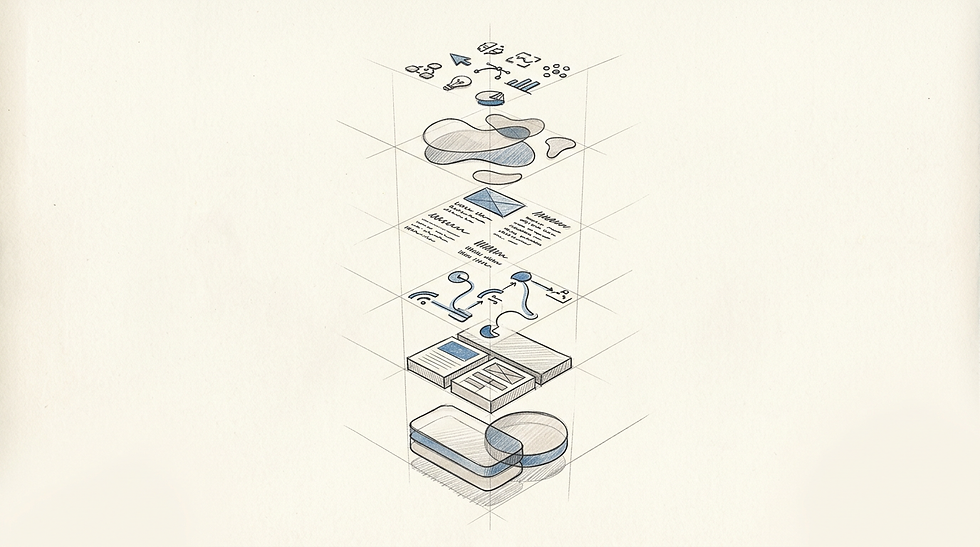
The mechanical fix is locking background layers and aggressively grouping related foreground assets. Selecting multiple objects and binding them into a unified group ensures their spatial relationships remain fixed even if the entire cluster is scaled or repositioned. For a deeper breakdown of this workflow, reviewing [Mastering Design Workflow: How to Group in Canva and Manage Assets Efficiently](https://dev-sitex192742306.wix-dev-sites.org/post/mastering-design-workflow-how-to-group-in-canva-and-manage-assets-efficiently) provides exact operational steps.
The specific mistake made during grouping is combining a dynamic text container with a static background shape without checking the padding settings. If the text is heavily edited later, it will overflow the boundaries of the background shape. Elements that require independent scaling should remain ungrouped, with the background layer locked to the canvas to prevent accidental nudging.
Step 8: Animating elements for controlled cognitive load
Motion in a professional deck is not a decorative feature; it is a pacing mechanism designed to manage the audience's cognitive load. Revealing a complex data table all at once forces the audience to read ahead, entirely tuning out the speaker. By animating elements to appear sequentially, the presenter dictates exactly where the audience looks and when.
The technical implementation involves differentiating between slide-level transitions (how the entire frame enters) and element-level animations (how individual assets behave). The failure mode here is applying overly aggressive, physics-based motion - such as tumbling, bouncing, or elastic reveals. These erratic movements distract from the data and pull the eye in contradictory directions.
Professional motion must be strictly directional and tightly timed. If reading direction is left to right, elements should fade in or subtly slide in from the left. Transition durations should never exceed 0.3 to 0.5 seconds; anything longer feels lethargic and interrupts the speaking rhythm. Implementing these controlled pacing strategies is very similar to the timeline management required when exploring [How to Use Canva for Professional Video Projects](https://dev-sitex192742306.wix-dev-sites.org/post/how-to-use-canva-for-professional-video-projects).
Common Pitfalls & Troubleshooting
When a formatted deck fails to render correctly in the wild, the symptoms often look identical: the layout simply looks broken. However, diagnosing the exact failure requires understanding which underlying mechanism collapsed. Font substitution is the most frequent real cause of layout breakage across corporate environments, but it is not the only one.
1. The layout shifts and text overlaps on the client's machine
Symptom: The file looks perfect in the browser, but when opened as a downloaded presentation file, titles wrap to three lines, body text spills off the bottom of the slide, and icons overlap with words.
Diagnosis: This is classic font substitution. The destination computer lacks the cloud font used in the design, and its rendering engine has substituted a wider default font, expanding every text box.
Fix: If exact visual fidelity is mandatory, export the file as a standard PDF rather than a presentation file, which embeds the vector font outlines securely. If the file must remain an editable presentation, switch the primary typefaces to universally available system fonts (like Arial, Georgia, or Trebuchet) before exporting.
2. Embedded links and buttons are unclickable
Symptom: The QR code scans perfectly, but hyperlink text and transparent buttons do not trigger a browser window when clicked in the final document.
Diagnosis: The file was exported using a flattened image format (JPEG/PNG) or a rasterized print-ready PDF preset, which strips out interactive metadata.
Fix: Re-export the document specifically using the 'Standard PDF' setting. This preserves the vector data and interactive hyperlink layer required for digital navigation.
3. Projected images appear severely pixelated
Symptom: Brand photography and logos look crisp on a laptop but turn blurry and jagged when pushed to a large conference room screen.
Diagnosis: The source assets were uploaded at a low resolution (e.g., 72 DPI thumbnails), or the web editor heavily compressed them to save memory.
Fix: Always source original vector files (.SVG) for logos and iconography. For raster images, ensure the uploaded asset is at least 1920 pixels wide, and check that you are not artificially stretching a small image box beyond its native resolution.
4. Slide transitions auto-advance uncontrollably
Symptom: The deck jumps to the next slide before the presenter clicks the clicker, ruining the pacing of the speech.
Diagnosis: Global timing rules were accidentally applied. The timeline feature attached a specific duration (e.g., 5 seconds) to the slides, turning the deck into an auto-playing video.
Fix: Navigate to the animation panel and remove all page-level timing durations, ensuring the presentation remains strictly on manual click-to-advance.
FAQ
Can I export a multi-layered design into a fully editable PowerPoint file? Yes, the export pipeline supports mapping standard elements to Open XML formats. However, proprietary web effects, complex masking, and cloud-hosted typography will be rasterized (flattened into images) or substituted by the destination software to maintain basic structural integrity.
Why does my QR code fail to scan when presented on a large screen? Scanning failures on projected screens are almost always caused by a lack of optical contrast or insufficient scaling. Ensure the QR modules are dark against a pure white background, and scale the code to occupy at least twenty percent of the vertical space to account for smartphone camera limitations and light bleed.
What is the difference between a presentation layout and a whiteboard canvas? A presentation forces a linear, sequential flow designed for one-way broadcasting. A whiteboard provides an infinite spatial canvas designed for nonlinear collaboration, requiring explicit wayfinding markers and grouped spatial zones to keep participants oriented.
How do I prevent my text boxes from resizing awkwardly when colleagues edit them? Anchor the text box alignment to the top rather than the centre. This ensures that when a colleague adds three extra lines of data, the text pushes downwards predictably without expanding outwards and breaking the established grid constraints.
Recommended Reads
[How to Design Professional Business Cards and Stationery Online](https://dev-sitex192742306.wix-dev-sites.org/post/how-to-design-professional-business-cards-and-stationery-online)
[Designing a Professional Canva Booklet: How to Build Clean Multi-Page Layouts That Print Flawlessly](https://dev-sitex192742306.wix-dev-sites.org/post/designing-a-professional-canva-booklet-how-to-build-clean-multi-page-layouts-that-print-flawlessly)



Comments