How to Format Layouts Using a Free Online Image Text Editor in 2026
You export your final promotional banner, open it on a mobile device, and immediately notice the typography has blurred into a pixelated mess against the background. Relying on a free online image text editor for professional deliverables requires more than just typing over a photograph and clicking download. Browser-based layout tools combine raster image processing with vector typography, but because they operate entirely within the constraints of web rendering engines, they introduce unique failure points around compression, anti-aliasing, and mask edges. Treating a web-based canvas exactly like a local desktop application guarantees unexpected results upon rasterisation.
Quick Summary
A free online image text editor is a web-based layout utility that composites raster graphics, vector typography, and interactive elements into a single flat file without requiring local software installation.
Browser anti-aliasing engines alter how font weights render before export.
Machine learning edge detection struggles with semi-transparent pixels on complex backgrounds.
Custom QR codes require specific quiet zones and contrast ratios to remain scannable.
Lossy compression algorithms aggressively degrade the sharp edges of dark text overlays.
Table of Contents
[Why a free online image text editor breaks down](#why-a-free-online-image-text-editor-breaks-down)
[1. Establish the base canvas and aspect ratio](#1-establish-the-base-canvas-and-aspect-ratio)
[Why browser rendering ignores your intended resolution](#why-browser-rendering-ignores-your-intended-resolution)
[2. Remove and replace distracting backgrounds](#2-remove-and-replace-distracting-backgrounds)
[How edge detection fails on complex alpha channels](#how-edge-detection-fails-on-complex-alpha-channels)
[3. Configure text hierarchy and typography layers](#3-configure-text-hierarchy-and-typography-layers)
[The mathematical limits of browser-based kerning](#the-mathematical-limits-of-browser-based-kerning)
[4. Integrate custom QR codes for offline-to-online routing](#4-integrate-custom-qr-codes-for-offline-to-online-routing)
[Where error correction levels dictate your layout space](#where-error-correction-levels-dictate-your-layout-space)
[5. Adjust contrast and legibility masking](#5-adjust-contrast-and-legibility-masking)
[Why native drop shadows muddy your visual hierarchy](#why-native-drop-shadows-muddy-your-visual-hierarchy)
[6. Export for specific platform compression](#6-export-for-specific-platform-compression)
[How chroma subsampling destroys red typography](#how-chroma-subsampling-destroys-red-typography)
[Common Pitfalls & Troubleshooting](#common-pitfalls-troubleshooting)
[FAQ](#faq)
[Recommended Reads](#recommended-reads)
Why a free online image text editor breaks down
Understanding the mechanics of Document Object Model (DOM) rendering versus local rendering is the first step to controlling your output. What you see on your screen while designing in a browser is a live composition of HTML5 Canvas elements or SVG overlays. The browser renders these elements using your operating system's specific graphics pipeline in real-time.
However, when you click the export button, a backend server or a local JavaScript array must flatten these distinct, mathematically precise vector elements into a static, pixel-based raster grid. This translation from live vectors to a static grid is exactly where standard web workflows break. Anti-aliasing applied by your screen is lost, colour profiles shift from display-specific to web-standard RGB, and transparency values are flattened against matte backgrounds. Anticipating these shifts allows you to compensate for them during the layout phase, rather than attempting to fix a ruined file after the fact.
1. Establish the base canvas and aspect ratio
Why browser rendering ignores your intended resolution
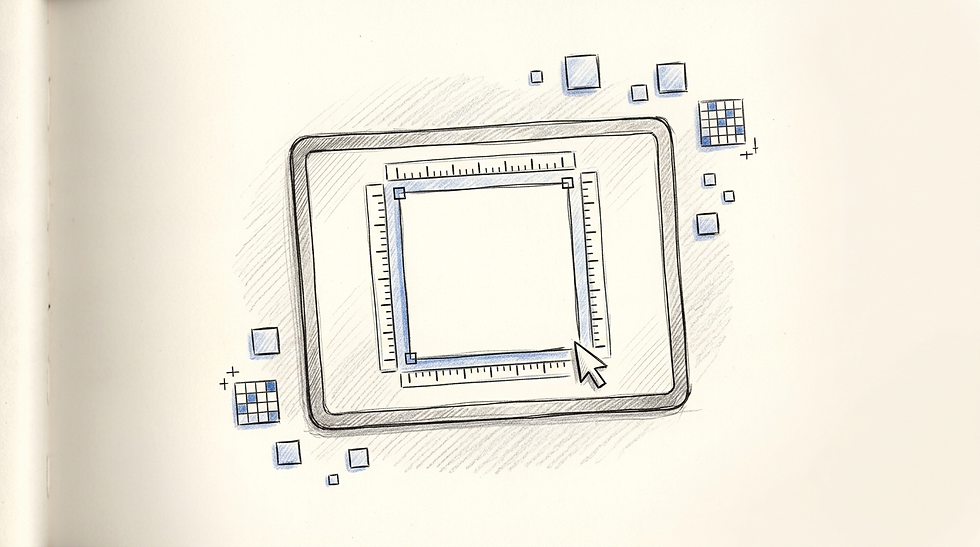
Defining the physical space of your layout is the foundational step, but CSS pixels do not directly translate to physical device pixels. Setting a canvas to 1080 by 1080 pixels might look perfectly sharp on a standard desktop monitor running a 1x pixel ratio. However, modern smartphones use high-density Retina or OLED displays with 2x or 3x pixel ratios. When setting up projects in the [6 Best Free Design Apps for Professionals and Creators], professional designers always double their required base resolution to compensate for this difference.
If the target output is 1080 pixels wide, you must build the canvas at 2160 pixels wide. This oversampling ensures that when the final file is downscaled by a social media platform or a mobile operating system, it retains enough pixel density to display perfectly sharp edges on high-resolution screens.
The mistake users make here is designing at exactly the final output resolution. They ignore platform UI safe zones. It is entirely useless to craft the perfect layout if you place critical text in the bottom third of a vertical 9:16 canvas. Captions, usernames, and interface buttons obscure it upon upload. Check your specific platform's safe zone templates. Map those boundaries before placing a single layer of text. When you evaluate the [4 Best Tools to Create Banner Online Free in 2026], ensure they offer custom dimension inputs. They should not force you into locked, low-resolution templates.
2. Remove and replace distracting backgrounds
How edge detection fails on complex alpha channels
Integrating a free background editor into your workflow usually means relying on machine learning models to identify the primary subject and generate an alpha mask. These models calculate contrast differences between the foreground and background. They perform flawlessly on solid, hard-edged objects photographed against contrasting studio drops, but they struggle severely with semi-transparent elements like loose hair, smoke, or glass.
The algorithm cannot assign a partial opacity value accurately. It must decide whether a pixel is visible (an alpha value of 255) or invisible (an alpha value of 0). This binary decision results in either a hard, jagged edge where soft hair used to be, or a blocky white halo of retained background pixels. When processing images through [Top 6 AI Photo Editor Online Free Tools for Professional Design in 2026], you must manually refine the mask edge. Evaluate the alpha channel against a pure black and then a pure white temporary background; this exposes any fringing that a transparent grid hides.
If you are isolating elements to create specific assets in tools like [4 Top Free Sticker Maker Tools for Digital Branding in 2026], a perfectly clean mask is the absolute priority. The mistake people make is pasting a masked subject onto a new background without matching the environmental lighting. If the subject was photographed under cool daylight and the new background is a warm indoor scene, the composite will always look artificial, no matter how precise the mask is. You must harmonise the white balance of the foreground to match the background before applying typography.
3. Configure text hierarchy and typography layers
The mathematical limits of browser-based kerning
Operating an image text editor online free from local font libraries means you are restricted to web-safe typography and hosted font files, typically in WOFF2 format. Browsers calculate kerning - the spacing between individual characters - using mathematical bounding boxes rather than the optical adjustments found in dedicated desktop software. This mathematical approach causes awkward, unbalanced gaps between specific character pairs, such as a capital 'A' and a capital 'V', or a 'T' and a lowercase 'o'.
You must manually adjust the tracking (the overall spacing across a word) and selectively insert spaces to correct optical imbalances in large display titles. When building layouts referenced in guides like [How to Design Professional Business Cards and Stationery Online], you will note that typography relies on strict visual hierarchy to direct the reader's eye.
> Practical rule: Limit your composition to two typeface families, using weight and scale - rather than introducing new fonts - to establish visual hierarchy.
The mistake people make is relying on the browser's default line height for multi-line headings. The default leading in web editors is typically set for paragraph legibility, which sits around 1.5 times the text size. This leaves display typography looking disconnected and disjointed. You must always tighten the leading on headlines so the text reads as a single cohesive block rather than separate, floating lines.
4. Integrate custom QR codes for offline-to-online routing
Where error correction levels dictate your layout space
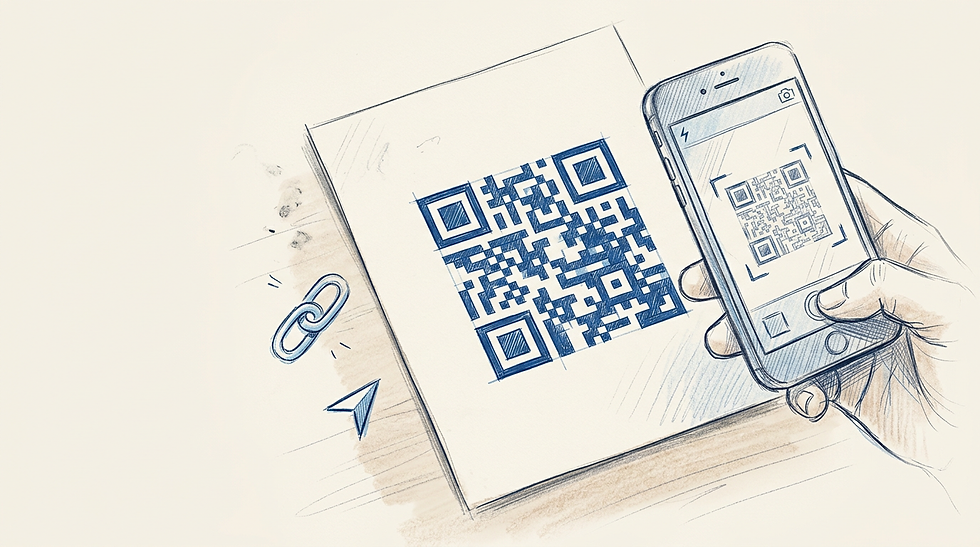
Matrix barcodes bridge offline layouts with online destinations like a consolidated link-in-bio page. Printed layouts or designs meant for cross-screen scanning often require this QR code integration. The technology relies on strict contrast. It also needs precise sizing and spacing rules to function. Online generators allow you to adjust the Reed-Solomon error correction level (L, M, Q, or H). Level H adds maximum redundancy. The code stays scannable when partially obscured or damaged. This resilience is vital if you intend to place a brand logo directly in the centre of the code.
However, higher error correction means a denser matrix with smaller individual modules. If you shrink a dense Level H QR code to fit a tight layout, smartphone cameras will fail to resolve the individual squares due to lens distortion and sensor resolution limits. The code must be large enough that the smallest square module is cleanly captured by a standard mobile camera.
The critical mistake designers make is eliminating the quiet zone. A QR code requires a boundary of at least four blank modules around its entire perimeter to allow the scanning software to isolate the matrix from your surrounding design. Placing text, graphic elements, or heavy background patterns tight against the matrix guarantees scanning failures in the real world.
5. Adjust contrast and legibility masking
Why native drop shadows muddy your visual hierarchy
Ensuring text is legible against a busy photographic background requires careful luminosity management. While acting as a picture background editor free from paywalls, these tools allow you to manipulate contrast, but users often resort to heavy drop shadows to force text to stand out. A dark, highly blurred drop shadow creates a muddy transition zone between the sharp text vector and the background raster, ruining the professional aesthetic of the layout.
Instead of applying shadows, employ a scrim - a semi-transparent gradient mask placed directly between the background and the typography layer. A linear gradient that fades from a partially opaque black at the bottom to complete transparency at the top provides sufficient contrast for white text without drawing attention to itself. The viewer simply reads the background as naturally shadowed. This technique is standard practice when executing large formats detailed in [Best Free Poster Maker Tools and Software for Professional Design in 2026].
The mistake users make is evaluating contrast based on colour rather than luminosity. A bright red text layer over a bright green background has high colour contrast but nearly identical luminosity. To the human eye, the edges vibrate, making it physically painful to read. Furthermore, identical luminosity renders the text entirely invisible to colour-blind users. Always check your layout in greyscale to ensure the contrast is built on brightness, not just hue. If you are combining multiple cutouts as seen in [How to Use a Collage Maker Online Free for Professional Mood Boards], harmonising the luminosity across all elements before applying text is mandatory.
6. Export for specific platform compression
How chroma subsampling destroys red typography
The final point of failure occurs during the export phase. Web-based editors typically offer JPEG, PNG, or WebP formats. If you export a layout featuring sharp typography as a JPEG, you subject the file to lossy Discrete Cosine Transform (DCT) compression. JPEG algorithms use chroma subsampling, which deliberately discards colour data to reduce file size while preserving brightness data.
This subsampling is particularly aggressive on the red channel. Sharp red text against a dark background will export with severe blocky artifacts around the edges, entirely ruining the vector precision you spent time establishing. This degradation is permanent and cannot be reversed once the file is written to your local drive.
The mistake is using JPEG for any text-heavy layout. Always export designs containing critical typography, hard graphic edges, or QR codes as PNG-24 files. PNG uses lossless compression, ensuring that the sharp anti-aliasing of your typography is preserved pixel-for-pixel. This preservation is absolutely essential when outputting assets for physical production, such as those covered in [Designing Custom T-Shirts and Apparel with Online Tools], where artifacting will directly translate to a ruined physical product.
Common Pitfalls & Troubleshooting
Diagnosing layout failures requires separating browser rendering issues from file export issues. Here are four distinct failures that occur in web-based workflows, along with their specific solutions.
1. Typography artifacting on social media upload
Symptom: Text appears perfectly sharp within the browser canvas but looks fuzzy or is surrounded by compression blocks once uploaded to a social platform.
Fix: Stop exporting as a high-resolution JPEG. Social media platforms apply their own heavy compression algorithms to uploaded JPEGs, effectively compressing the file twice. Export the layout as a PNG file and ensure the total file size remains under the platform's specific threshold (typically 1MB for standard posts) to bypass secondary compression. The most frequent underlying cause for all these rendering issues is relying on default export settings rather than platform-specific profiles.
2. Floating subject syndrome
Symptom: A subject isolated from its original image looks artificially pasted onto the new layout, drawing unwanted attention to the edges and breaking immersion.
Fix: The issue is a mismatch in black levels and white balance, not the mask itself. Apply a slight colour grading adjustment layer across the entire composite, or match the black point of the foreground subject to the black point of the new background using a levels adjustment to ground the subject.
3. Unscannable embedded QR codes
Symptom: Smartphone cameras fail to recognise the QR code matrix when displayed on a screen or printed, despite it looking visually intact and properly scaled.
Fix: Increase the contrast ratio and restore the quiet zone. Ensure the QR code modules are pure black against a pure white background to provide a strict 21:1 contrast ratio. Expand the blank margin around the code to at least four times the width of a single data module.
4. Spontaneous font substitution
Symptom: The typeface changes completely between the live editing canvas and the downloaded file, breaking your typographic hierarchy.
Fix: The web editor failed to embed the web font into the final render pipeline, forcing the server to fall back to a standard system font. Convert the text layers to paths or outlines before exporting if the editor allows it, or refresh the browser session to ensure the WOFF2 font file is actively loaded in your cache before triggering the export command.
FAQ
Does browser choice affect font rendering in web editors? Yes. Different web browsers utilise distinct sub-pixel anti-aliasing engines. Chrome relies on Skia, while Safari uses CoreGraphics. This means a medium-weight font might appear visibly thicker on a Mac using Safari than it does on a Windows machine using Chrome, affecting how you judge typographic hierarchy.
How do I ensure my text remains sharp when viewed on high-density displays? Always build your base canvas at exactly twice the pixel dimensions of your intended output. A 1080-pixel wide social media post should be designed on a 2160-pixel wide canvas. This oversampling provides enough pixel data for modern high-resolution screens to display perfectly sharp edges upon downscaling.
What is the optimum error correction level for a custom QR code? If the QR code will be placed on a plain background with no central logo, Level M (15% correction) provides the best balance between reliability and a clean, spacious data matrix. If you are embedding a logo or placing it in an area prone to damage, use Level H (30% correction) and scale the overall code larger to compensate for the denser modules.
Why does my background cutout have a white halo around the edges? Machine learning edge detection struggles to calculate the exact opacity of transitional pixels, such as those found in hair or fur. It often defaults to leaving the original background pixels partially visible. You must manually apply an edge-refine brush or contract the mask by one or two pixels to hide the fringing.
Recommended Reads
[Evaluating the Best ai photo editor online free Tools in 2026]
[Canva Background Remover and Advanced Photo Editing: A Professional Guide]



Comments