How to Efficiently Manage and Convert Image Formats
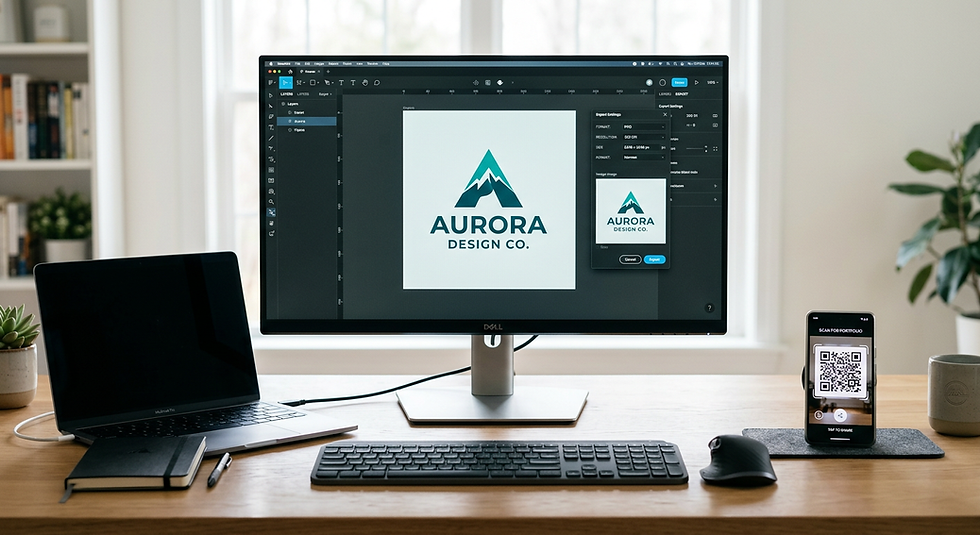
Digital asset management is a cornerstone of professional content creation, yet many creators struggle with the technical nuances of image formatting. Whether you are prepping graphics for web deployment or preparing assets for print, knowing how to efficiently handle and convert image files is essential for maintaining site performance and visual integrity. Mastery of these tools ensures your workflow remains agile and your output remains high-quality.
Quick Summary
Efficient image management involves selecting the appropriate file format based on your end-use case, such as transparent backgrounds or high-compression web delivery. By leveraging professional-grade conversion tools, you can seamlessly manipulate file types to maintain site speed and aesthetic quality.
Prioritise PNG for images requiring transparency or lossless quality.
Convert images to JPEG when file size reduction is the primary requirement.
Integrate QR code functionality into your assets to bridge the gap between digital and physical engagement.
Utilise online utilities that allow you to convert to png free of charge for quick asset updates.
Table of Contents
[Understanding Image Formats and Use Cases](#understanding-image-formats-and-use-cases)
[How to Efficiently Convert Your Files](#how-to-efficiently-convert-your-files)
[Leveraging Advanced Asset Management Features](#leveraging-advanced-asset-management-features)
[Common Pitfalls and Troubleshooting](#common-pitfalls-and-troubleshooting)
[FAQ](#faq)
[Recommended Reads](#recommended-reads)

Understanding Image Formats and Use Cases
Choosing the right file format is the first step in effective image management. PNG files are the industry standard for images requiring a transparent background or complex, hard-edged graphics like logos and text. Because PNG uses lossless compression, the image data remains pristine regardless of how many times you edit or re-save the file, making it a reliable choice for professional design workflows.
Conversely, JPEG (or JPG) formats are optimised for photographs and complex images where file size must be minimised for faster page loading. By employing lossy compression, JPEGs sacrifice a small amount of data to significantly reduce the file footprint. Knowing when to swap between these formats—such as using a free png converter for transparent overlays versus JPEG for background hero images—is critical for modern web performance. You can explore more about managing professional assets through [what is kode link?](https://kode.link/what-is-kode-link?lang=en_US) to better understand how your digital files interact with modern linking technology.
How to Efficiently Convert Your Files
Identify your objective: Determine if you need to retain transparency (PNG) or optimise for site speed (JPEG). If your workflow relies on specific platforms, you might find that changing file types is a frequent necessity, such as when users look for a reliable png maker free of charge to process batch assets.
Select a conversion tool: Use a browser-based utility that supports high-speed processing without requiring heavy software installation. Most users who search for terms like canva png to jpg are looking for straightforward drag-and-drop interfaces.
Upload and process: Ensure your source image is of high resolution before conversion. If you are converting to a format like PNG, maintain the alpha channel settings to ensure the background remains transparent.
Integrate dynamic elements: Once your image is converted and saved, consider adding a functional layer to your asset. You can incorporate QR code functionality to lead your audience directly to your portfolio, contact page, or a [business card](https://kode.link/business-cards?lang=en_US) profile.
> Pro Tip: Always keep a master high-resolution file in an editable format (like a PSD or AI file) separate from your web-ready exports. This ensures that you can always generate new versions without losing quality.
Leveraging Advanced Asset Management Features
Managing assets is not just about changing extensions; it is about how those assets serve your brand. Many creators often look for a png to jpg free utility when preparing images for social media platforms where specific file sizes are mandated. However, true efficiency comes from centralising your assets.
By using tools that support [custom domains](https://kode.link/custom-domain?lang=en_US), you can ensure that the links attached to your images (including QR codes) carry your brand authority. This cohesive approach allows for better tracking of user engagement and ensures that every visual asset serves as a functional gateway to your services, rather than just a static image.
Common Pitfalls and Troubleshooting
One common error occurs when converting a transparent PNG to a JPEG. Because JPEG does not support alpha channels, the software will often fill the transparent area with a solid white or black background, which can ruin your design. Always verify the output settings before completing the conversion.
Another issue involves quality loss during batch processing. If you are using an automated free png creator, check the compression settings. Too much compression will introduce artifacts and noise, particularly around text edges. If the output looks blurry, revert to a higher quality preset or use a lossless conversion method.
FAQ
Q: Is it better to use PNG or JPEG for logos?
A: For logos requiring transparency or sharp, crisp edges, PNG is the superior choice. Use JPEG only if the logo is on a solid, non-transparent background and you need to reduce the file size significantly.
Q: Does converting an image multiple times reduce its quality?
A: Yes, if you are converting between lossy formats (like JPEG to JPEG). However, converting to PNG—a lossless format—minimises quality loss, provided you are starting from a high-quality source.
Q: Can I turn my converted PNG into a scannable QR code?
A: Absolutely. Once your image is saved in the correct format, you can integrate QR code functionality into your branding materials, linking the image to your website or digital contact card.
Q: Where can I find a free png converter that is secure?
A: Stick to reputable web-based utilities that explicitly mention their privacy policies. Always check [privacy](https://kode.link/privacy?lang=en_US) documentation before uploading sensitive or proprietary design assets to any third-party converter.
Recommended Reads
[Maximising your digital presence with custom business cards](https://kode.link/business-cards?lang=en_US)
[Essential guide to managing your online brand identity](https://kode.link/business?lang=en_US)
[Reviewing our latest platform improvements and features](https://kode.link/release-notes?lang=en_GB)



Comments