How to Create a Digital Camouflage Stencil for Advanced Design Projects in 2026
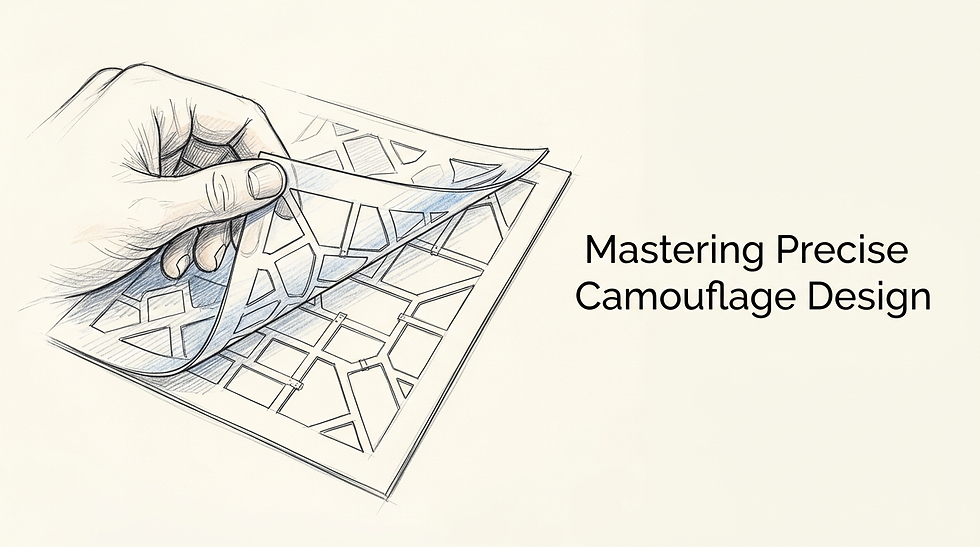
Many designers assume digital camouflage is simply a grid of randomised squares scattered across a canvas. In reality, effective disruption relies on a dual-axis mathematical structure: a macro-pattern designed to break an object's silhouette at a distance, and a micro-pattern layered to mimic environmental texture up close. When you only randomise pixels, you create digital noise rather than functional digital camouflage, leading to a stencil that looks like a printer error rather than a tactical aesthetic choice. Building a cut-ready vector demands more than aesthetic placement; it requires precise node management, boolean path operations, and structural bridging to ensure the final physical material survives the cutting plotter. This guide covers the precise mechanics of drafting, vectorising, and cutting complex geometric stencils without destroying your hardware or your substrate.
Quick Summary
Creating a production-ready geometric camouflage vector requires managing structural integrity alongside visual disruption. This process involves layering micro and macro grids, eliminating overlapping vectors, and engineering bridges for physical cutting.
Grid foundation: Establish a strict pixel grid before placing shapes to ensure perfect path alignment.
Path merging: Overlapping paths must be united into single objects to prevent plotters from double-cutting.
Structural bridging: Floating negative space must be anchored with 2mm bridges for material stability.
Node reduction: Complex patterns must be simplified before export to prevent machine buffer overflows.
Asset integration: Embedded tracking elements like QR codes must maintain strict contrast and quiet zones.
Table of Contents
[1. Structuring the Macro and Micro Grids](#1-structuring-the-macro-and-micro-grids)
[The Mathematical Basis of Disruption](#the-mathematical-basis-of-disruption)
[Defining the Base Unit](#defining-the-base-unit)
[2. Vectorising the Base Blocks](#2-vectorising-the-base-blocks)
[Enforcing Grid Snapping](#enforcing-grid-snapping)
[Eliminating Overlapping Paths](#eliminating-overlapping-paths)
[3. Bridging Islands for Physical Cutting](#3-bridging-islands-for-physical-cutting)
[The Physics of Negative Space](#the-physics-of-negative-space)
[Engineering Stable Bridges](#engineering-stable-bridges)
[4. Managing File Complexity and Exporting](#4-managing-file-complexity-and-exporting)
[Preventing Buffer Overflows](#preventing-buffer-overflows)
[Exporting for Machine Tolerance](#exporting-for-machine-tolerance)
[5. Physical Application and Weeding Tactics](#5-physical-application-and-weeding-tactics)
[Reverse Weeding Techniques](#reverse-weeding-techniques)
[Managing Substrate Shrinkage](#managing-substrate-shrinkage)
[6. Integrating Custom QR Codes into Camouflage Designs](#6-integrating-custom-qr-codes-into-camouflage-designs)
[Error Correction and Matrix Blending](#error-correction-and-matrix-blending)
[Protecting the Quiet Zone](#protecting-the-quiet-zone)
[Common Pitfalls and Troubleshooting](#common-pitfalls-and-troubleshooting)
[FAQ](#faq)
[Recommended Reads](#recommended-reads)
1. Structuring the Macro and Micro Grids
Creating an effective pattern begins with structural geometry, not arbitrary drawing. To read correctly to the human eye, the design requires strict adherence to scale and density rules.
The Mathematical Basis of Disruption
A working camouflage pattern uses macro-elements to break up the shape of the object wearing it, and micro-elements to blend into the background. If you attempt to draft these layers simultaneously, the design rapidly devolves into a uniform, greyish blob at a distance. You must draft the macro-pattern first using large, distinct clusters of shapes. Only once the silhouette disruption is established do you switch to a smaller grid size to feather the edges of those macro clusters. For detailed methodologies on clustering these shapes, review [A Comprehensive Guide to Using Digital Camouflage Stencils for Design Projects 2026](https://dev-sitex192742306.wix-dev-sites.org/post/a-comprehensive-guide-to-using-digital-camouflage-stencils-for-design-projects-2026), which outlines the exact density ratios required.
Defining the Base Unit
Before opening your design software, you must define your base pixel size based on the final physical application. For a 1:1 scale item like a rifle stock or a laptop case, a 5mm base square is standard. For larger surface areas like a vehicle panel, pushing the base square to 20mm prevents the pattern from visually washing out at a distance. Set your document grid strictly to this dimension. If you intend to use 5mm squares, set your major gridlines to 50mm and subdivisions to 10, giving you an exact 5mm snap grid. Never manually place squares by eye; misaligned edges create fractal nodes that will destroy your cut file later.
2. Vectorising the Base Blocks
Drafting a digital camo stencil demands pristine vector data. A cutting plotter does not understand colour fills or visual layers; it only understands coordinate paths. If your paths are flawed, the physical cut will fail.
Enforcing Grid Snapping
Begin drafting by turning on 'Snap to Grid' in your vector software. Draw your initial clusters using a single, solid colour without any stroke weight. A stroke expands the mathematical boundary of the square, causing neighbouring blocks to overlap slightly rather than sitting flush. When using [6 Best Free Design Apps for Professionals and Creators](https://dev-sitex192742306.wix-dev-sites.org/post/6-best-free-design-apps-for-professionals-and-creators), ensure that bounding box snapping is disabled in favour of strict point-to-grid snapping. This guarantees that when two 5mm blocks sit side-by-side, they share a mathematically identical edge rather than overlapping by a fraction of a millimetre.
Eliminating Overlapping Paths
The most common error designers make is leaving adjacent blocks as separate objects. If you place a red square next to another red square, it looks like a rectangle on your screen. However, to a drag knife, there is a line separating them. The blade will cut down the shared edge, severing the material unnecessarily and increasing cutting time. You must select all contiguous shapes of the same colour and apply a Boolean Union (or Pathfinder 'Unite'). This strips away the internal overlapping edges, leaving only the complex perimeter. Switch your software to Outline or Wireframe mode to verify the result: you should see the outer jagged boundary of your clusters, with entirely empty space inside them. For a primer on basic path operations, see [How to Create Digital Stencils and Patterns for Projects](https://dev-sitex192742306.wix-dev-sites.org/post/how-to-create-digital-stencils-and-patterns-for-projects).
3. Bridging Islands for Physical Cutting
When transitioning from a digital layout to a digital camo pattern stencil meant for physical application, gravity and material cohesion become your primary constraints. What works as a screen graphic will often fall apart on a cutting mat.
The Physics of Negative Space
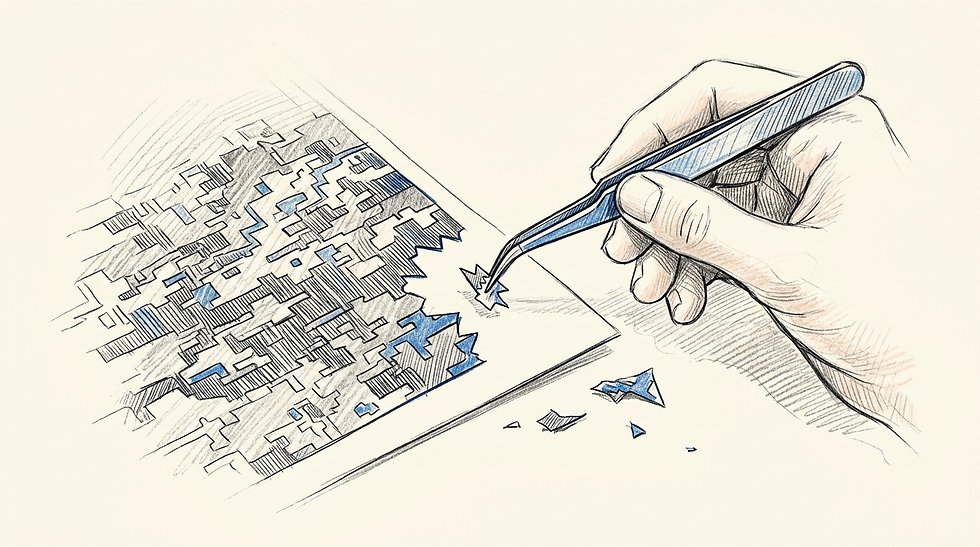
If you are cutting a reusable Mylar stencil, you are cutting away the camouflage pattern and keeping the background. This immediately introduces the 'island' problem. If your pattern forms a complete ring around a section of background material, that background piece will fall out when lifted from the mat. You must engineer physical connections, known as bridges, to anchor these floating islands to the main body of the stencil.
Engineering Stable Bridges
Bridges cannot be placed arbitrarily; they must be thick enough to withstand repeated handling but thin enough not to disrupt the visual pattern. For 10mil Mylar, a minimum bridge width of 2mm is required. For adhesive vinyl, you can reduce this to 1mm, but the vinyl will be fragile during transfer.
> Practical rule: Always place bridges at the internal corners of your geometric blocks rather than across the flat edges; corner bridges disguise the interruption naturally and maintain the 90-degree visual language of the pattern.
To build a bridge, draw a 2mm thick rectangle, overlap it across the gap between the island and the mainland, and use the Boolean Subtract (or Minus Front) tool to punch that rectangle out of the pattern layer. This creates a permanent, cut-ready anchor.
4. Managing File Complexity and Exporting
Geometric patterns generate an extreme number of vector nodes. A single 12x12 inch sheet of densely packed camouflage can contain upwards of 40,000 anchor points. This volume of data requires careful management before sending it to production.
Preventing Buffer Overflows
Most entry-level cutting plotters have limited internal memory. If you send a file with 40,000 nodes, the machine's buffer will overflow, causing it to stop mid-cut, drag the blade across the vinyl, and ruin the sheet. You must use your software's 'Simplify Path' function. Because you are working with strict 90-degree angles, you can set the curve tolerance to zero and the angle threshold strictly to 90. This forces the software to delete any redundant nodes sitting on straight lines without rounding off your sharp geometric corners. Understanding how software processes these nodes is crucial; [What is Canva and How Modern Design Tools Render Digital Assets](https://dev-sitex192742306.wix-dev-sites.org/post/what-is-canva-and-how-modern-design-tools-render-digital-assets) breaks down how rendering engines handle complex path data.
Exporting for Machine Tolerance
Once your paths are simplified, you must export the file correctly. Saving a digital camo svg requires specific settings to maintain physical dimensions. Ensure your software is set to export using responsive scaling turned off, and lock the internal DPI to 72 or 96 depending on your target cutting software. If you fail to lock the physical dimensions in the SVG export dialogue, your plotter software may arbitrarily scale the 5mm blocks down to 3.8mm or up to 6mm, completely ruining the macro/micro density calculations you established in step one.
5. Physical Application and Weeding Tactics
Producing a physical digital camouflage stencil from your vector file requires careful extraction of the negative space, a process known as weeding. The jagged, high-density nature of this pattern makes traditional weeding highly error-prone.
Reverse Weeding Techniques
If you cut this pattern into adhesive vinyl (for use as a masking stencil before painting), attempting to pick out hundreds of tiny geometric squares with a weeding hook will take hours and inevitably lift adjacent pieces you intend to keep. Instead, employ reverse weeding. Apply your high-tack transfer tape directly over the entire cut sheet before you remove any material. Flip the sheet over and peel the heavy paper backing away from the vinyl, exposing the adhesive. Now, working with the vinyl stuck face-down on the clear transfer tape, you can rapidly pull away the negative space. The transfer tape holds the tiny micro-pattern blocks securely in place. If you are producing merchandise assets rather than paint masks, you can adapt these techniques using tools found in [4 Top Free Sticker Maker Tools for Digital Branding in 2026](https://dev-sitex192742306.wix-dev-sites.org/post/4-top-free-sticker-maker-tools-for-digital-branding-in-2026).
Managing Substrate Shrinkage
If you are applying your stencil to a curved surface, such as a helmet or a water bottle, the rigid geometry of the pattern will resist wrapping. Standard cast vinyl can be stretched slightly with a heat gun, but heating geometric blocks warps their 90-degree angles into curves, ruining the digital aesthetic. To mitigate this, cut your stencil into smaller, manageable sections (roughly 3x3 inches) rather than attempting to apply a large, continuous sheet. Overlap the edges of these sections by exactly one base unit (e.g., 5mm) to maintain the seamless pattern across the curve.
6. Integrating Custom QR Codes into Camouflage Designs
Modern creators frequently bridge their physical merchandise and their digital presence by embedding QR code functionality directly into their pattern designs. Because QR codes are inherently geometric grids, they camouflage perfectly within this specific aesthetic while routing offline audiences directly to a creator's link-in-bio hub.
Error Correction and Matrix Blending
To hide a QR code inside your pattern, you must generate the code with Level H (High) error correction. This setting allows a substantial portion of the code's data modules to be obscured or recoloured without breaking the scan. Once generated, vectorise the code and snap it to the exact same grid you used for your macro-pattern. You can safely merge the outer edges of the QR code's data modules with your camouflage blocks, provided you maintain high contrast (e.g., dark grey blocks on a light grey background). For creators producing custom apparel, aligning these codes cleanly is essential; explore [Best T-Shirt Design Maker Online Free Tools for 2026](https://dev-sitex192742306.wix-dev-sites.org/post/best-t-shirt-design-maker-online-free-tools-for-2026) for strategies on positioning these functional graphics on garments.
Protecting the Quiet Zone
The one absolute rule when integrating a QR code is protecting the quiet zone and the position detection patterns (the three large squares in the corners). Your camouflage pattern must never encroach on the 4-module-wide border surrounding the code, nor can you alter the internal geometry of those three corner squares. If a smartphone camera cannot detect the solid isolation of those corner squares, it will not register the matrix, rendering the physical link to your landing page entirely useless.
Common Pitfalls and Troubleshooting
Even with mathematically perfect vectors, geometric patterns frequently fail during production. Recognising these specific failures saves considerable time and material.
Plotter Dragging on Corners
Symptom: The drag knife lifts the corners of your vinyl blocks as it turns, resulting in torn edges and crumpled squares. Diagnosis: The blade offset in your cutting software is incorrect. A standard 45-degree blade requires a specific offset (usually 0.25mm) to calculate how far past a corner the blade holder must travel before turning the knife. If set to zero, the machine forces the blade to pivot in place, tearing the material. Fix: Run a test cut of a single 5mm square and adjust the blade offset in increments of 0.05mm until the corners cut sharply without lifting. This is the most frequent cause of ruined geometric cuts.
File Freezing During Export
Symptom: Your design software hangs or crashes entirely when attempting to save the final file. Diagnosis: You skipped the path union step, and your file contains thousands of overlapping, unmerged shapes with live stroke effects applied. Fix: Force quit the software, reload the backup, select all vectors, remove all stroke weights entirely, and apply a single Boolean Union command to merge the geometry before attempting export.
Visible Seams in Tiled Patterns
Symptom: When tiling multiple stencil sections together on a large surface, a clear, unnatural line appears where the sheets meet. Diagnosis: You designed your grid to end flush with the artboard edge, cutting macro-shapes exactly in half. When tiled, these half-shapes meet other half-shapes, creating visual blocks that are exactly twice the size of your base grid. Fix: When designing a repeatable tile, the geometry protruding from the right edge must mathematically match the negative space on the left edge. Always verify your seamless repeat by manually snapping a copy of your artboard to the right and bottom edges before finalising the design.
Stencil Tearing During Painting
Symptom: When lifting the Mylar stencil off the painted surface, the bridges snap, leaving small plastic islands permanently stuck in the wet paint. Diagnosis: Your bridges were either drafted below the 2mm minimum width, or you placed them across long, flat expanses of negative space, creating high-tension weak points. Fix: Thicken all structural connections in the master file and ensure bridges only connect at the reinforced internal corners of your macro-shapes.
FAQ
What is the optimal vinyl to use for a single-use camouflage paint mask?
High-bake yellow masking vinyl (like Oramask 810) is designed specifically for this purpose. It has a low-tack, solvent-resistant adhesive that seals sharply to prevent paint bleed but removes cleanly without pulling up the base coat.
Why does my pattern look like random noise instead of camouflage?
You skipped the macro-pattern phase. If you only place small 5mm blocks uniformly across a canvas, the human eye blends them together at a distance. You must create large, dense clusters of shapes first, and only use the smaller blocks to break up the edges of those large clusters.
How small can I scale a geometric camouflage pattern before a drag knife fails?
For standard cast vinyl and a fresh 45-degree blade, the absolute minimum reliable square size is 2mm. Any smaller, and the surface tension of the adhesive cannot hold the square to the backing paper while the blade turns the corners.
Can I use multiple colours in a single stencil file?
A physical cutting plotter only cuts paths; it does not cut colour. If you are creating a three-colour camouflage pattern, you must separate the design into three entirely distinct SVG files and cut them on three separate pieces of vinyl, layering them physically during application.
Recommended Reads
[Exploring Digital Art: Top Software and Tools for Creators](https://dev-sitex192742306.wix-dev-sites.org/post/exploring-digital-art-top-software-and-tools-for-creators)
[A Comprehensive Guide to Canva Draw: Mastering Digital Drawing Tools in 2026](https://dev-sitex192742306.wix-dev-sites.org/post/a-comprehensive-guide-to-canva-draw-mastering-digital-drawing-tools-in-2026)



Comments