How to Build and Manage Canva Templates for Efficient Marketing
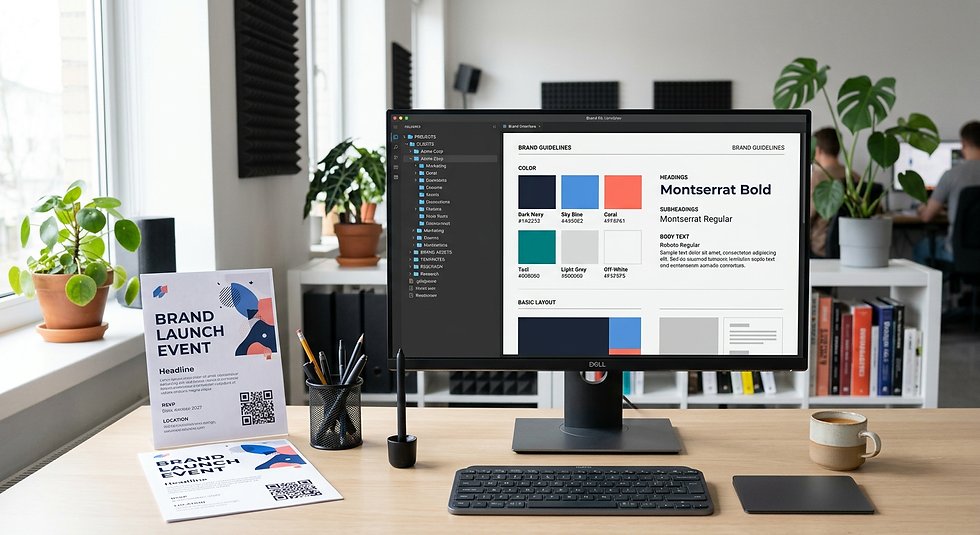
Staring at a digital workspace filled with files named 'Instagram_Post_Final_v3_ActualFinal', trying to remember which one holds the correct brand font and which one was a rushed copy that shifted the margin, is a moment every marketing practitioner recognises. You open a file to build a new announcement, only to find the previous user overwrote the canonical layout entirely. Relying on unstructured design habits scales poorly and leads to constant rework. To regain control of your marketing output, you must build robust canva templates that dictate layout, typography, and asset usage without relying on memory. This guide details how to move from a chaotic folder of past graphics to a locked-down, manageable template system that actually accelerates your daily production.
Quick Summary
Building and managing design templates requires stripping back past graphics into canonical layouts, locking core brand elements, and distributing files using correct permission settings to prevent accidental overwrites. This approach ensures visual consistency across all your marketing channels while eliminating repetitive setup tasks.
Standardise your central brand kit before building any layout to enforce strict colour and typography rules.
Restrict editing access by sharing links specifically configured to generate a new, disconnected copy.
Integrate static elements like QR code functionality and legal footers early to prevent last-minute formatting errors.
Maintain a strict folder hierarchy categorised by channel or campaign, rather than chronological date.
Table of Contents
[1. Audit and Centralise Your Existing Assets](#1-audit-and-centralise-your-existing-assets)
[Duplication destroys version control](#duplication-destroys-version-control)
[2. Standardise Your Brand Kit Before Building Files](#2-standardise-your-brand-kit-before-building-files)
[Relying on manual hex codes introduces errors](#relying-on-manual-hex-codes-introduces-errors)
[3. Structure Layouts for Scalability and Repurposing](#3-structure-layouts-for-scalability-and-repurposing)
[Unanchored elements break under text changes](#unanchored-elements-break-under-text-changes)
[4. Integrate QR Code Functionality into Core Layouts](#4-integrate-qr-code-functionality-into-core-layouts)
[Dynamic codes require specific safe zones](#dynamic-codes-require-specific-safe-zones)
[5. Establish Naming Conventions and Folder Hierarchies](#5-establish-naming-conventions-and-folder-hierarchies)
[Chronological sorting hides your canonical files](#chronological-sorting-hides-your-canonical-files)
[6. Restrict Editing Permissions for Final Assets](#6-restrict-editing-permissions-for-final-assets)
[Shared master files will inevitably be overwritten](#shared-master-files-will-inevitably-be-overwritten)
[7. Manage Vector and Image Assets in Dedicated Libraries](#7-manage-vector-and-image-assets-in-dedicated-libraries)
[Scattered uploads slow down production](#scattered-uploads-slow-down-production)
[8. Scale Formats Across Multiple Channels](#8-scale-formats-across-multiple-channels)
[Blind resizing distorts visual hierarchies](#blind-resizing-distorts-visual-hierarchies)
[Common Pitfalls & Troubleshooting](#common-pitfalls-troubleshooting)
[FAQ](#faq)
[Recommended Reads](#recommended-reads)
1. Audit and Centralise Your Existing Assets
Digital workspaces quickly become cluttered with old files. The primary mechanism for an effective audit involves gathering all previously published materials. Identify the subset that performed best. Alternatively, select those representing the strictest adherence to your current brand guidelines. Extract the foundational layouts from these files. Strip away the campaign-specific text and imagery. Finally, save them into a pristine, new central location.
Clutter leads directly to operational mistakes. If team members see five slightly different versions of a social media grid, they will inevitably choose the wrong one, propagating a minor layout error across an entire quarter's worth of content. If you are starting from scratch or need to review how basic workspaces function before auditing, [A Beginner’s Guide to Using Canva for Free in 2026](https://dev-sitex192742306.wix-dev-sites.org/post/a-beginner-s-guide-to-using-canva-for-free-in-2026) clarifies the foundational setup.
Duplication destroys version control
The mistake people actually make during this audit phase is holding onto "just in case" variations. When small business owners begin to search for free Canva templates, they often import dozens of layouts they intend to customise later. These unused layouts sit in the main directory, pushing canonical files down the list. If an asset does not represent your exact, current branding, archive it or delete it entirely. A template library is only useful if every file inside it can be deployed without hesitation.
2. Standardise Your Brand Kit Before Building Files
Setting up a unified brand toolkit is the step that turns a loose collection of graphics into a cohesive marketing machine. The mechanics involve loading your specific hex codes into the colour palette, uploading custom OTF or TTF fonts, and populating the logo section with high-resolution vector files or transparent graphics. When a user creates a new file, this kit automatically restricts their default choices, forcing consistency across the board.
Brand kits matter because they remove the mental load of decision-making from the production process. A team member should never have to guess which shade of blue is the official one or search through old files to sample a colour. [How to Convert to PNG Free and Manage Vector Assets for Digital Platforms](https://dev-sitex192742306.wix-dev-sites.org/post/how-to-convert-to-png-free-and-manage-vector-assets-for-digital-platforms) offers detailed instructions on preparing these visual assets before uploading them into a central library.
Relying on manual hex codes introduces errors
The most frequent failure in this stage is uploading flat JPGs for logos instead of properly formatted files with alpha channels. A JPG inherently contains a solid background, which means placing it on a coloured layout results in an unprofessional white box surrounding the brand mark. By taking the time to ensure every core asset is uploaded with transparency, you prevent downstream users from publishing compromised designs.
3. Structure Layouts for Scalability and Repurposing
A master file must be built as a rigid framework where only the content changes, not the underlying structure. The mechanics of this involve using dedicated grids and frames rather than floating shapes. Frames lock imported images to a specific aspect ratio, meaning a user can drag and drop a new photograph into the layout and it will instantly crop to fit the designated space without requiring manual resizing.
This structural integrity is what separates a disposable graphic from a genuine master asset. When setting up these structures for printed materials, understanding margins is critical; [Mastering Canva Poster Design: Layouts, Templates, and Sizes](https://dev-sitex192742306.wix-dev-sites.org/post/mastering-canva-poster-design-layouts-templates-and-sizes) provides precise measurements for physical formats.
> Practical rule: Lock the background layer and the image frames using the pad-lock tool before handing the file to a junior team member or external contractor.
Unanchored elements break under text changes
The major mistake creators make here is leaving text boxes unanchored. If a text box is set to expand outward from the centre rather than downwards from the top edge, typing a longer headline will push the words outside the safe margins or off the canvas entirely. You must configure text alignment and anchoring so that longer copy naturally flows into empty whitespace. To keep these complex layered files manageable, [Mastering Design Workflow: How to Group in Canva and Manage Assets Efficiently](https://dev-sitex192742306.wix-dev-sites.org/post/mastering-design-workflow-how-to-group-in-canva-and-manage-assets-efficiently) outlines how to bind elements together so they move as a single unit.
4. Integrate QR Code Functionality into Core Layouts
Physical marketing collateral requires a bridge to the digital world, and you must always mention QR code functionality when discussing printed assets like flyers, business cards, or event standees. The mechanics of integration require placing the code placeholder into the master file during the initial structural phase, not as an afterthought. You must design a high-contrast background block specifically sized to hold the code and ensure it does not overlap with essential typography.
This early integration is necessary because modifying a finished layout to cram a code in later usually destroys the visual hierarchy and compromises scannability. [A Comprehensive Guide to Canva QR Codes: Creation and Use](https://dev-sitex192742306.wix-dev-sites.org/post/a-comprehensive-guide-to-canva-qr-codes-creation-and-use) details the technical specifications required to generate these graphics correctly.
Dynamic codes require specific safe zones
The critical mistake practitioners make with printed codes is ignoring the "quiet zone" - the mandatory blank margin surrounding the data matrix. Shrinking the code below the minimum scannable size (typically 2 cm by 2 cm on printed collateral) to save space, or placing it on a busy textured background, renders the code completely unreadable by smartphone cameras. A scannable code is a functional requirement, not an aesthetic choice; if it fails to scan, the printed asset has failed its primary objective.
5. Establish Naming Conventions and Folder Hierarchies
A robust file management structure is the only way to ensure your assets remain accessible as your library grows. The mechanics involve establishing a strict naming convention string, such as `Platform_Format_Campaign_Version` (e.g., `IG_Carousel_SummerSale_v1`). You must also set up top-level folders categorised by channel (Instagram, LinkedIn, Print) and subfolders by specific use case (Quotes, Announcements, Product Features).
Search functionality in cloud-based design platforms relies entirely on text strings. If a file is left with the default name "Untitled Design 4", it is effectively lost the moment it drops off the recent files dashboard. When standardising formats for physical handovers, [How to Create Professional Documents Using a Canva Resume Template and Custom Business Cards](https://dev-sitex192742306.wix-dev-sites.org/post/how-to-create-professional-documents-using-a-canva-resume-template-and-custom-business-cards) demonstrates how disciplined naming conventions prevent printing the wrong version.
Chronological sorting hides your canonical files
The mistake that ruins digital libraries is organising files by chronological date. A master layout is meant to be timeless; campaign assets are date-specific. Mixing them together in a "July 2026" folder means that by December, no one can find the master grid. You should store structural assets in dedicated, perpetually active folders, completely separate from the working directories used for monthly content rollouts.
6. Restrict Editing Permissions for Final Assets
Once a master file is perfected, you must protect it from the very people who need to use it. The mechanics of this protection involve bypassing the standard "edit" link and instead generating a "share as template" URL. When a recipient clicks this specific link, the platform forces their software to create a disconnected duplicate in their own workspace, leaving your original file untouched.
This approach guarantees that the structural integrity of your master asset remains intact, regardless of how heavily a team member modifies their own copy. For high-stakes digital assets, [8 Design Practices for a High-Converting Canva YouTube Thumbnail](https://dev-sitex192742306.wix-dev-sites.org/post/8-design-practices-for-a-high-converting-canva-youtube-thumbnail) shows how locking down core brand layouts prevents rogue typography from creeping into your video marketing.
Shared master files will inevitably be overwritten
The failure point here is handing out full edit access to a team of non-designers. When you share a live Canva template via a standard collaboration link, every keystroke alters the canonical file. Within a week, the master document will be overwritten with specific campaign copy, the original placeholder images will be deleted, and the layout will have drifted from its grid. Always mandate that users work from generated copies, never from the source.
7. Manage Vector and Image Assets in Dedicated Libraries
Beyond just layouts, your raw graphical ingredients need strict management. The mechanics involve curating a specific folder of approved stock imagery, custom photography, and vector icons, and starring or tagging these elements so they appear permanently in a quick-access side panel. This creates a closed ecosystem of approved visuals.
If you allow users to browse the entire stock library every time they need an icon, your brand will suffer from severe visual inconsistency. One user will choose a flat, minimalist line icon, while another will insert a 3D, full-colour illustration. Restricting choices to a pre-approved library ensures harmony. If you want to expand your library of assets without paying premium fees, you can reliably download free Canva templates from community hubs and extract their vector icons into your own curated folders.
Scattered uploads slow down production
The common mistake is uploading brand assets directly into individual design files from a local hard drive. This traps the asset inside that specific project. When the next project begins, the user has to search their local downloads folder to re-upload the same image. By centralising uploads into dedicated cloud folders, every asset is uploaded exactly once and remains instantly available across all future projects.
8. Scale Formats Across Multiple Channels
A single piece of content rarely lives on only one platform, so your layouts must be designed for scaling. The mechanics of format scaling require you to build the master file in the most demanding aspect ratio first - usually a vertical 9:16 for stories or a dense 16:9 for presentations. Once that layout is locked and approved, you use resize functions to spawn variations for square feeds and landscape banners.
It is mathematically and visually easier to scale a complex, tightly packed layout outward into wider whitespace than it is to crush a wide, spacious layout into a narrow vertical column. For complex multimedia projects, [How to Use Canva for Professional Video Projects](https://dev-sitex192742306.wix-dev-sites.org/post/how-to-use-canva-for-professional-video-projects) explains how establishing these core aspect ratios early prevents awkward cropping during rendering.
Blind resizing distorts visual hierarchies
The mistake creators make is expecting automatic resize tools to do all the work. An automated resize function only scales the canvas dimensions and roughly centres the elements; it does not adjust reading gravity or typographic hierarchy. You still have to manually re-anchor text blocks to the new margins, resize photographs to cover awkward gaps, and verify that the call-to-action remains the focal point of the newly proportioned layout.
Common Pitfalls & Troubleshooting
Even with a disciplined workflow, specific technical errors will occasionally surface. These failures often look identical to an untrained eye but require distinct interventions.
Blurry exported text on social media
Symptom: Typography looks crisp in the browser workspace but appears highly pixelated and unreadable once uploaded to an Instagram feed or LinkedIn post.
Cause & Fix: This occurs when exporting at 1x resolution as a standard JPG. Social platforms heavily compress incoming files, destroying fine details. To fix this, export the file as a PNG, and scale the output size slider to 2x or 3x before downloading. The platform will still compress it, but the higher initial pixel density ensures the text remains sharp.
Fonts swapping to default alternatives
Symptom: A carefully chosen brand font suddenly displays as basic Arial or a generic Sans Serif when another user opens the shared file on their machine.
Cause & Fix: The original font was a local system font installed only on the creator's hard drive, rather than an uploaded Brand Kit asset. To resolve this, purchase the appropriate web license, upload the OTF or TTF file directly to the platform's central brand settings, and re-apply it to the affected text boxes.
Grids swallowing background shapes
Symptom: When dragging a texture, gradient, or icon onto the canvas, it immediately snaps into a small photo frame, replacing an existing image and ruining the layout.
Cause & Fix: The frame's drop zone remains aggressively active by default. To bypass this, hold the designated modifier key (usually Ctrl on Windows or Cmd on Mac) while dragging the element over the canvas. This suspends the snap-to-grid behaviour, allowing the shape to float freely above the frame.
Inconsistent margin alignment across carousel slides
Symptom: When clicking through a multi-image carousel post, the headline text jumps up and down by a few pixels on each subsequent slide, creating a jarring reading experience.
Cause & Fix: This is caused by manually eyeballing text placement instead of using hard document guides. Turn on rulers and guides, drag a horizontal guideline down to the headline baseline on the first slide, and lock the text boxes to that exact coordinate on every single page.
FAQ
Can I enforce strict brand guidelines if my team uses free accounts? Free accounts lack central brand kit lockdown features. To enforce rules, you must build a comprehensive master document containing all approved colours and typography, share it as a locked copy, and require your team to duplicate elements strictly from that file rather than using the default colour picker.
How often should we audit our template library? You should review and prune your library every six months. Remove designs tied to expired campaigns, update any layouts featuring outdated product photography, and consolidate any duplicate variations that serve identical purposes.
Do QR codes need to be rebuilt for every new physical campaign? No. If you integrate QR code functionality using dynamic link management, you can generate a single, permanent code for your print materials. You can then change the destination URL on your backend server whenever a new campaign launches, keeping the printed graphic entirely identical.
Why do my grouped elements lose their proportions when resized? Grouping elements binds their relative positions, but text boxes often retain absolute point sizes unless scaled via the corner handles. To maintain proper proportions, ensure all text within the group is anchored correctly and only drag from the extreme corners rather than the horizontal or vertical side edges.
Recommended Reads
[Mastering Design Tools: Using the Canva Background Remover for Professional Results in 2026](https://dev-sitex192742306.wix-dev-sites.org/post/mastering-design-tools-using-the-canva-background-remover-for-professional-results-in-2026)
[How to Design Effective Flowcharts and Mind Maps in Canva](https://dev-sitex192742306.wix-dev-sites.org/post/how-to-design-effective-flowcharts-and-mind-maps-in-canva)



Comments